How to Delete an Account in Google Analytics 4
Managing data in Google Analytics 4 can become confusing over time. Many users create extra accounts for testing or projects and later want to remove them. Knowing how to delete an account helps you keep things organized. Deleting a GA4 account is simple, but you need to act carefully because you may lose access to important data. Before removing any account, it is important to understand how that data is used in web analytics so you do not lose valuable insights. This guide will show you the steps in a clear and easy way.
What Happens When You Delete a Google Analytics 4 Account?
Deleting an account in Google Analytics 4 removes all its data and settings. You can no longer access reports, users, or linked properties. This action affects everything under that account.
When you delete an account, you should expect:
You should review everything before deleting the account. This helps you avoid losing important data or access.
Before You Delete Your GA4 Account
Before you delete your account in Google Analytics 4, you should review a few important things. This helps you avoid data loss and access issues. A quick check can save you from problems later.
Make sure you complete these steps before deletion:
These checks help you stay in control of your data. You can delete the account with confidence and avoid mistakes.
How to Delete an Account in Google Analytics 4
Deleting an account in Google Analytics 4 is simple when you follow the right steps. You just need proper access and a clear process. Before making changes, it is important to review your existing setup, such as traffic sources tracking, so you do not lose important data. Follow each step carefully to avoid mistakes.
Step 1: Go to Admin Settings
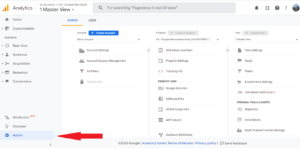
Open Google Analytics and go to the Admin section. You will find this option at the bottom left of the screen. This is where you manage account settings.
Step 2: Select the Account
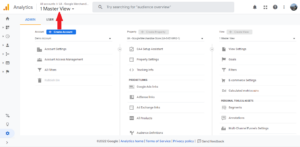
In the Admin panel, choose the account you want to delete. Make sure you select the correct account. This step is important because deletion affects all data.
Step 3: Move to Trash
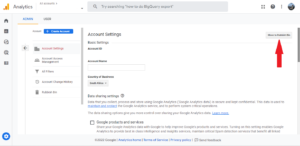
Look for the option to move the account to trash. Click on it to start the deletion process. The account will move to a temporary storage area.
Step 4: Confirm Deletion
Confirm your action to complete the process. Once confirmed, the account will stay in trash for a limited time. After that, Google removes it permanently.
How to Restore a Deleted GA4 Account
You can restore a deleted account in Google Analytics 4 if it is still in the trash. Google keeps deleted accounts for a limited time before permanent removal. You must act within this period to recover your data.
Here is what you need to know:
Follow these steps to restore your account:
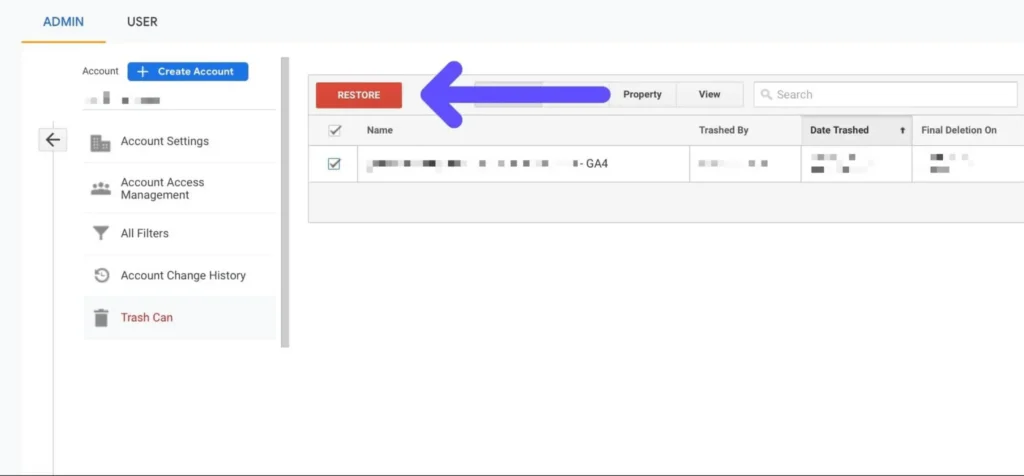
Restoring the account will bring back your data and settings. Make sure you act quickly before permanent deletion.
Common Mistakes to Avoid
Small mistakes can lead to data loss or access issues in Google Analytics 4. Many users rush the process and skip basic checks. You should be careful before deleting any account.
Deleting Wrong Account
Users sometimes select the wrong account by mistake. This can remove important data and settings. Always double-check the account name before deletion. Make sure you choose the correct one.
No Backup
Many users delete accounts without saving their data. This leads to permanent data loss. Always export or back up your reports before deletion. This keeps your important data safe.
Permission Issues
Some users try to delete accounts without proper access. This can block the process or cause confusion. Make sure you have admin permissions before you start. This helps you complete the action without errors.
Conclusion
Deleting a GA4 account is simple, but you need to act carefully. You learned what happens after deletion and how to complete each step. You also saw how to avoid common mistakes and protect your data.
Always review your account, backup data, and confirm access before deleting. This helps you manage your analytics safely and avoid problems later.