How to Track Website Traffic Sources with GA4
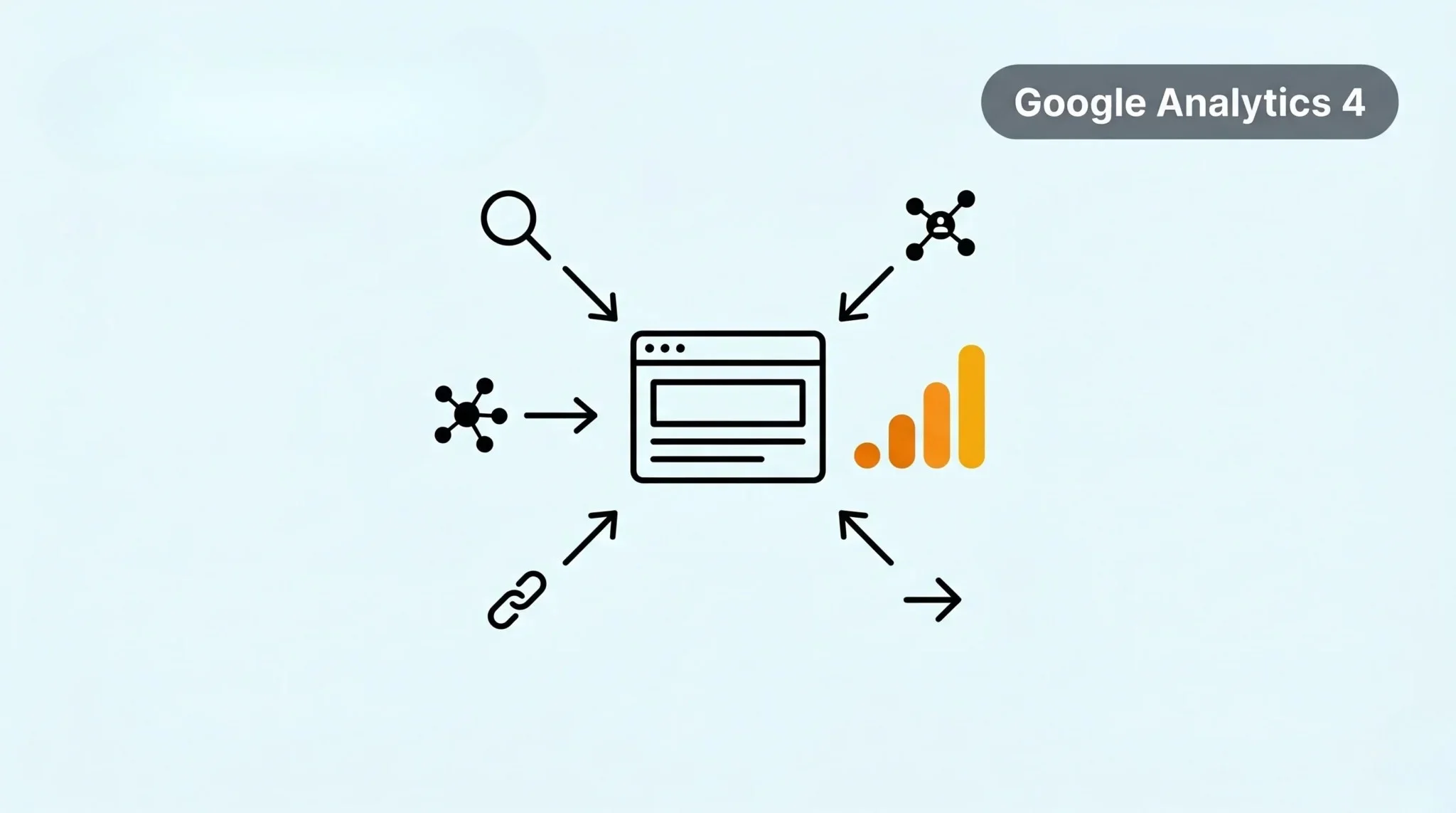
Tracking website traffic in Google Analytics 4 helps you understand where your visitors come from. Many beginners struggle to identify which channels bring real traffic. This makes it hard to measure performance and improve results.To understand which traffic actually leads to results, setting up conversion tracking is essential. GA4 solves this by showing clear data about traffic sources. In this guide, you will learn how to track and analyze your traffic sources step by step.
What Are Traffic Sources in Google Analytics 4?
Traffic sources in Google Analytics 4 show where your website visitors come from. They help you understand how users find your site. This makes it easier to track performance and improve your marketing.
GA4 groups traffic into different types based on user origin. Each type shows a different way users reach your website.
Here are the main traffic sources:
Understanding these sources helps you focus on what works best. You can improve your strategy based on real data.
Why Tracking Traffic Sources Is Important
Tracking traffic sources in Google Analytics 4 helps you understand where your visitors come from. It shows which channels bring users to your website. This gives you a clear view of your traffic sources.
You can measure performance and improve your marketing decisions with this data. It helps you find which channels work best and which need improvement. This allows you to focus on strategies that bring better results.
How Google Analytics 4 Tracks Traffic Sources
Google Analytics 4 tracks traffic sources using three main dimensions. These help you understand where users come from and how they reach your site. Each one shows a different part of the traffic journey.
Here are the key dimensions:
These dimensions work together to give a clear picture of your traffic. You can use them to analyze performance and improve your marketing strategy.
Step-by-Step: How to Track Website Traffic Sources in GA4
You can track traffic sources in Google Analytics 4 using built-in reports. The process is simple if you follow each step carefully. This will help you see where your traffic comes from.
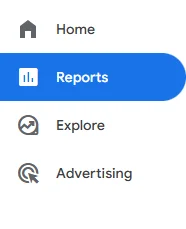
Step 1: Go to the Reports Section
Open your GA4 property and click on Reports from the left menu. This section shows all your website data. You will use it to access traffic reports.
Step 2: Open Acquisition Reports
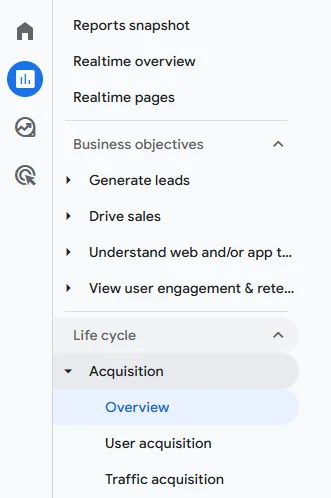
Inside Reports, go to the Acquisition section. Click on Traffic acquisition to view traffic data. This report shows how users reach your website.
Step 3: View Traffic by Source and Medium
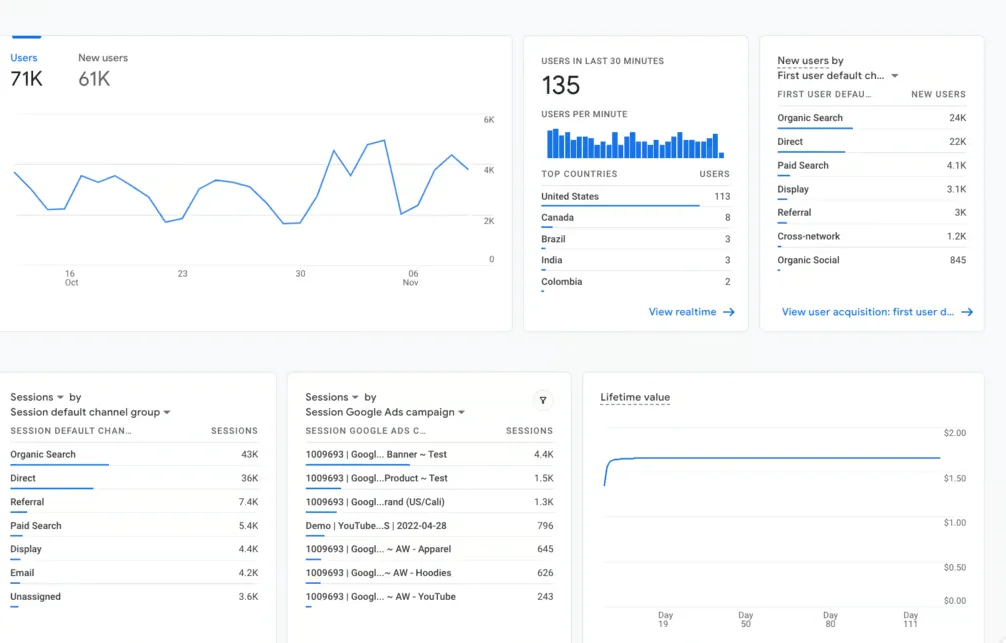
In the report table, look for the source and medium columns. These show where your traffic comes from and how users found your site. You can sort or filter this data to analyze performance.
Step 4: Analyze Default Channel Group
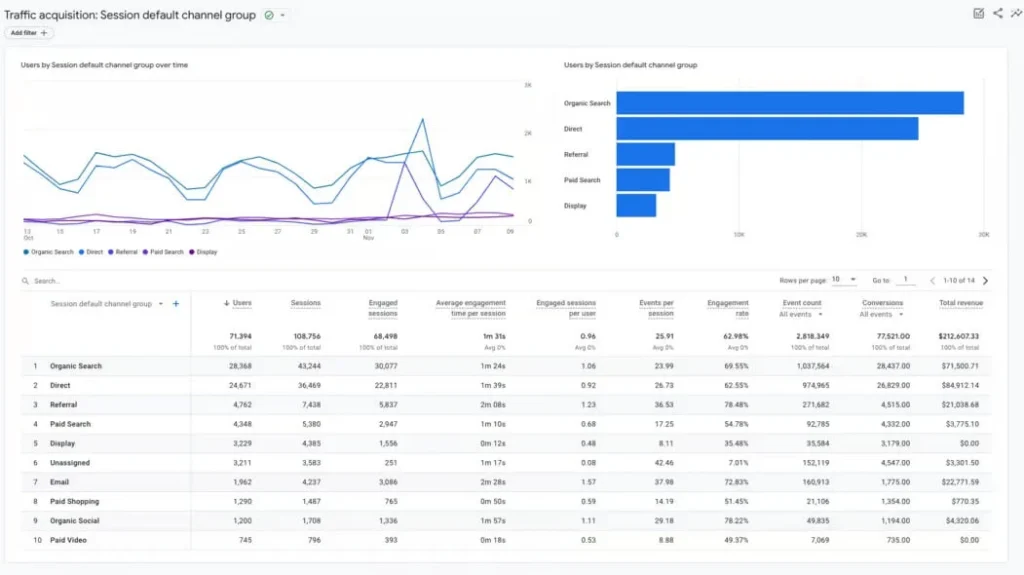
Check the default channel group to see traffic categories. This groups your traffic into channels like organic search or social. It helps you understand which channels drive the most visitors.
How to Track UTM Links in Google Analytics 4
UTM links help you track specific campaigns in Google Analytics 4. They add extra details to your URLs so GA4 can identify traffic sources clearly. This helps you measure campaign performance with accuracy, and once you start working with this campaign data, organizing it using pivot tables makes analysis easier.
What Is a UTM Link?
A UTM link is a normal URL with added tracking parameters. These parameters tell GA4 where the traffic comes from. You can use them in ads, emails, or social media links.
UTM Parameters Explained
UTM parameters give detailed information about your traffic. Each parameter plays a specific role.
These parameters help you track traffic with more detail.
Why UTM Tracking Is Important
UTM tracking helps you measure the success of your campaigns. You can see which links bring traffic and which do not. This helps you improve your marketing strategy based on real data.
How to Monitor Website Traffic in GA4
You can monitor website traffic in Google Analytics 4 using built-in reports and real-time data. This helps you track visitors and understand their behavior. You can see how users interact with your site at any moment, including the number of unique visitors visiting your website..
You can monitor traffic using these sections:
Real-time data helps you track active users instantly. Reports help you analyze trends over time. This gives you a complete view of your website performance.
Common Mistakes When Tracking Traffic Sources
Many users make simple mistakes while tracking traffic in Google Analytics 4. These mistakes can lead to wrong data and poor decisions. You should understand them to avoid confusion.
Direct Traffic Confusion
Direct traffic often looks high, but it can be misleading. It may include unknown or untracked sources. This happens when links do not pass proper data. You should not assume all direct traffic comes from users typing your URL.
Missing UTM Tags
Many users forget to add UTM parameters to their links. This makes it hard to track campaign performance. Always use UTM tags in emails, ads, and social links. This helps you get accurate source data.
Wrong Interpretation
Users often misread source and medium data. This leads to incorrect conclusions about traffic. You should understand each metric before analysis. This helps you make better decisions based on correct data.
Conclusion
Tracking traffic sources helps you understand where your visitors come from. You learned how to view, analyze, and monitor traffic in GA4. You also saw how UTM links improve tracking accuracy. Use this data to improve your marketing strategy. Focus on sources that bring better results. This will help you grow your website with clear insights.