What Are Google Analytics 4 Sessions?
Understanding data in Google Analytics 4 can feel confusing at first, especially for beginners. Many users see the term sessions but do not understand what it actually means. A session shows how a user interacts with your website during a single visit. It helps you track activity, measure engagement, and understand user behavior. In this guide, you will learn sessions in a simple and clear way so you can read your data with confidence.
What Is a Session in Google Analytics 4?
A session in Google Analytics 4 represents a single visit to your website or app. It starts when a user lands on your site and begins interacting with it. All actions during that visit, like page views and clicks, stay grouped in one session. A session helps you understand how users behave during their visit. It shows how they interact, how long they stay, and what actions they take.
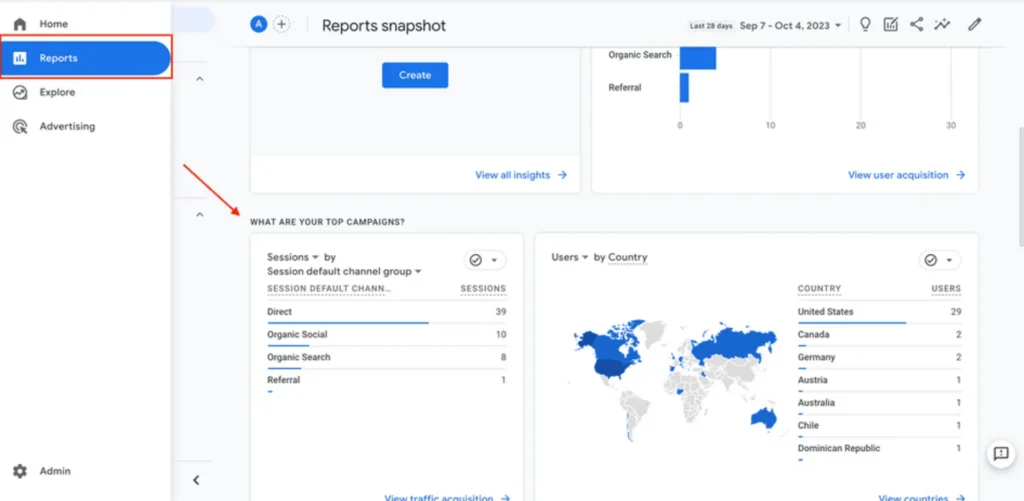
This makes your data easier to read and analyze. You can view session data in Reports > Reports snapshot. This section shows total sessions by default channel group. You can use this data to see which traffic sources bring more visitors to your site.
How Sessions Are Calculated in GA4
In Google Analytics 4, sessions are based on events. GA4 does not rely on page views like older versions. It tracks every user action and groups them into a session.
Session Start
A session starts when a user visits your website or app. GA4 triggers a session start event at that moment. This marks the beginning of user activity.
Events Inside Session
All user actions count as events inside a session. These include page views, clicks, scrolls, and other interactions. GA4 collects these events to show user behavior during the visit.
Session End
A session ends after 30 minutes of inactivity by default. If the user leaves or stays inactive, GA4 closes the session. A new session will start if the user returns later.
What Triggers a New Session in GA4?
A new session starts when user activity meets certain conditions in Google Analytics 4. GA4 tracks sessions based on events and timing. Understanding these triggers helps you read your data correctly.
A new session can start in these cases:
Each of these actions signals a fresh interaction. GA4 treats it as a new session to keep data organized. This helps you track visits and measure user engagement accurately.
Difference Between Sessions and Users in GA4
Many beginners confuse sessions and users in Google Analytics 4. Both metrics look similar, but they measure different things. Understanding this difference helps you read your data correctly. A user represents a unique person who visits your website.
GA4 counts one user even if that person visits multiple times. This helps you know how many individual visitors you have. A session represents a single visit to your website. One user can create multiple sessions by visiting your site again. Each visit counts as a new session based on activity.
You can understand it like this:
This difference helps you measure both reach and engagement.
Difference Between UA and GA4 Sessions
Sessions work differently in Google Analytics 4 and Universal Analytics. GA4 uses an event-based model, while UA relied on session rules. This creates clear differences in how data gets tracked.
| Feature | Universal Analytics (UA) | Google Analytics 4 (GA4) |
|---|---|---|
| Feature | Universal Analytics (UA) | Google Analytics 4 (GA4) |
| Tracking model | Session-based tracking | Event-based tracking |
| Session start | Based on page views | Triggered by the session_start event |
| Session reset | Resets at midnight | Does not reset at midnight |
| Campaign change | Starts a new session | Can continue in the same session |
| Data accuracy | Less flexible tracking | More accurate user behavior tracking |
UA focused on sessions as the main unit. GA4 focuses on events and user activity. This makes GA4 more flexible and easier to understand real user behavior.
What Is an Engaged Session in GA4?
An engaged session in Google Analytics 4 shows meaningful user activity on your website. It means the user did more than just open a page. This helps you measure real engagement instead of simple visits.
GA4 counts a session as engaged when one of these actions happens:
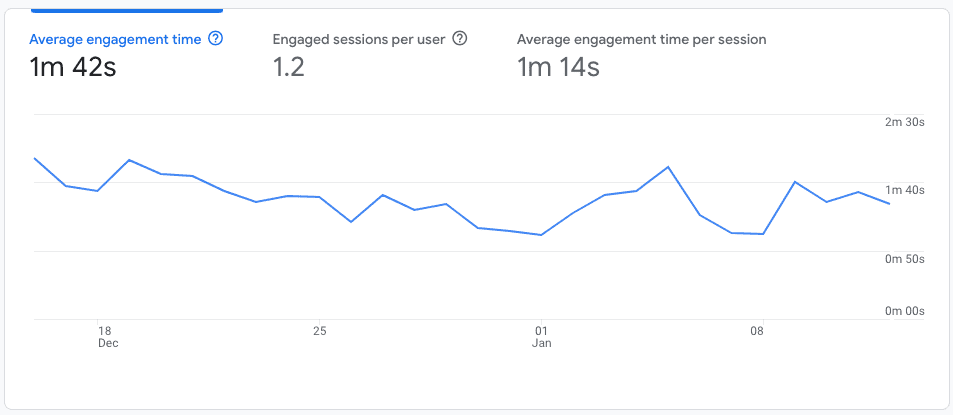
You can track this metric in the Engagement section under Overview. Here, you can view engaged sessions per active user and see how it changes over time. You can also adjust the date range from the top right to analyze different periods. Engaged sessions help you understand which users show real interest, and to measure how this interest turns into actual results, setting up Google Ads conversion tracking becomes important. This makes your data more useful for improving content and performance.

Where to Find Session Metrics in Google Analytics 4
You can find session data in different reports inside Google Analytics 4. Each report shows sessions from a different angle. This helps you understand traffic, behavior, and user details.
Acquisition Reports
Go to Reports and open the Acquisition section. Here, you will see sessions by traffic source and channel. This helps you understand where your visitors come from.

Engagement Reports
Open the Engagement section under Reports. This shows how users interact with your website during sessions. You can analyze engagement time, events, and sessions together.
Demographics and Tech Reports
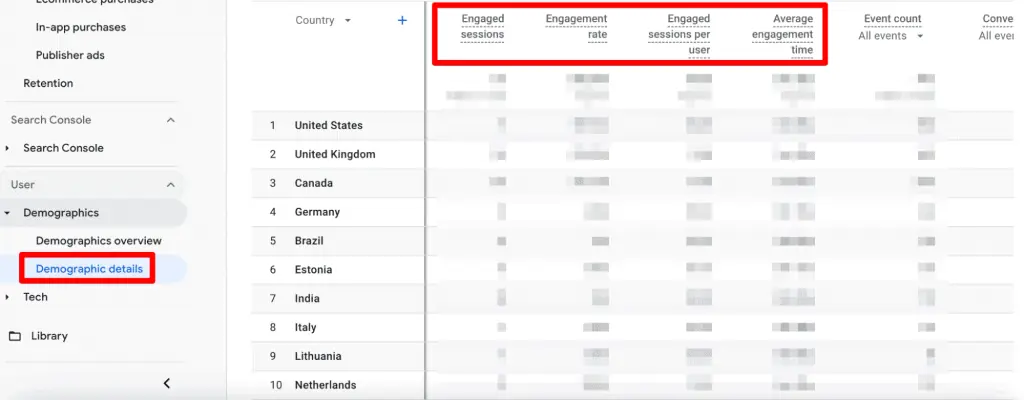
In the User section, open Demographics or Tech reports. These reports show sessions based on user location, device, and browser. This helps you understand your audience better.
How to Add Session Metrics to Reports
You can customize reports in Google Analytics 4 to include session metrics. This helps you see sessions with other data in one place, especially when you want to break down performance by traffic sources. You need editor or admin access to make these changes and build reports that match your analysis needs.
Follow these steps to add session metrics:
Open any report from the Reports section.
Click the customize or edit icon at the top right.
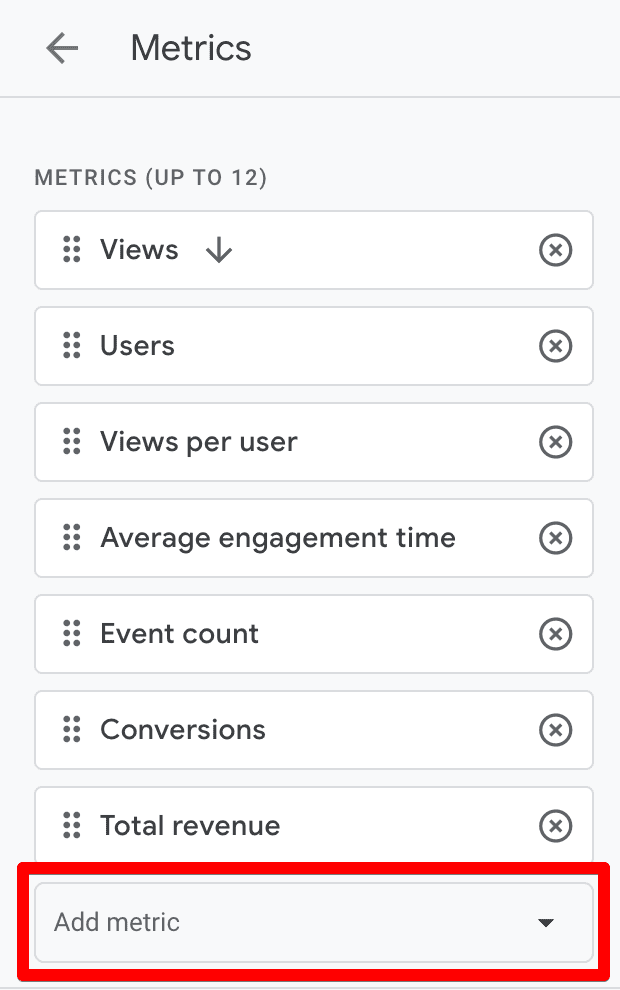
Go to the Metrics section in the panel.
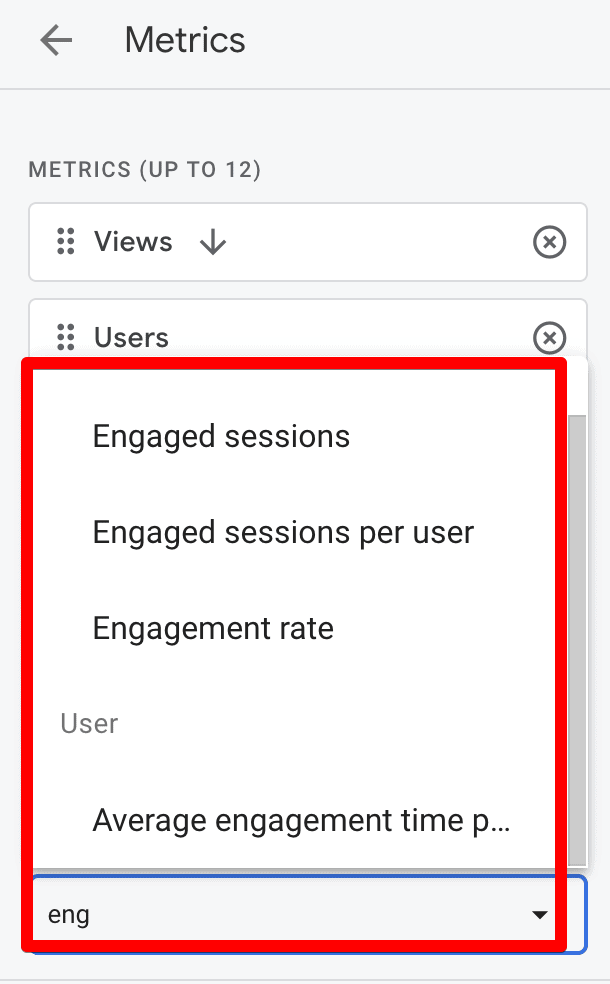
Click Add metric and search for “Sessions.”
Select Sessions and add it to the list.
Click Apply and then Save changes.
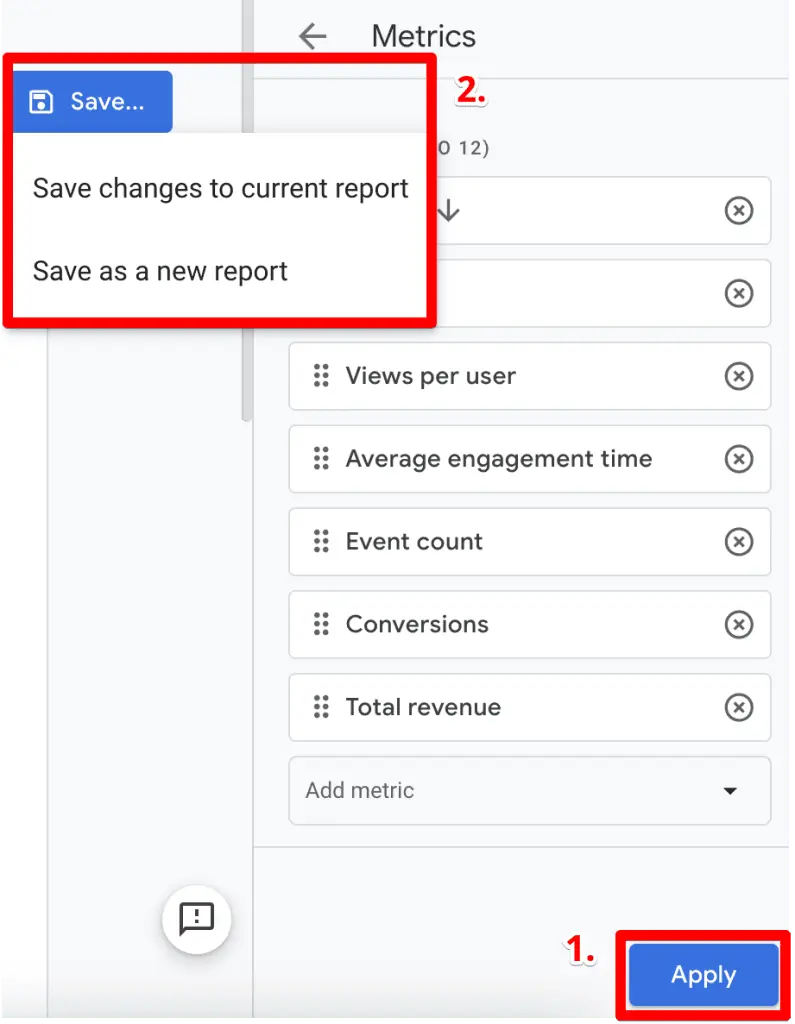
After this, the report will show session data with other metrics. You can use this to compare traffic, engagement, and performance in one view.
Common Issues with GA4 Sessions
Users often face issues with session data in Google Analytics 4. These problems can affect accuracy and create confusion in reports. You should understand these issues to avoid wrong analysis.
Tracking Issues
An incorrect setup can break session tracking. Missing tags or wrong configuration can stop data collection. Make sure your tracking code works properly. Check your setup to ensure all events track correctly.
Data Mismatch
Session numbers may not match across tools or reports. This happens due to different tracking methods or delays. GA4 processes data differently, so small differences are normal. Always compare data within the same platform.
Confusion in Metrics
Many users mix sessions with users or page views. This leads to wrong conclusions about performance. Understand each metric clearly before analysis. This helps you read reports with confidence and accuracy.
Conclusion
Sessions help you understand how users visit and interact with your website. You learned how sessions work, how they get counted, and where to find them. You also saw common issues and important differences in GA4. With this knowledge, you can read your data more clearly. This helps you track performance and improve your website based on real user behavior.