How to Check Backlinks in Google Analytics 4
Many users try to find backlinks in Google Analytics 4 but cannot see them in reports. They check different sections but still find no clear backlink data. This creates confusion and makes SEO tracking difficult. Most users expect GA4 to show backlinks like other SEO tools, but it does not work that way.
GA4 does not show backlinks directly because it focuses on user behavior and traffic sources. Instead, it tracks backlinks through referral traffic. You need to use the right report to find this data. In this guide, you will learn how to check backlinks and analyze their performance step by step.
Can You See Backlinks in Google Analytics 4?
You cannot see backlinks directly in GA4. The platform does not provide a dedicated backlink report. It focuses on user activity, traffic sources, and engagement data instead of link tracking.
However, GA4 still helps you track backlinks in a different way. It records visits from external websites as referral traffic. This means you can identify which sites link to you by analyzing referral sources. You just need to use the correct report to view this data.
How GA4 Tracks Backlinks
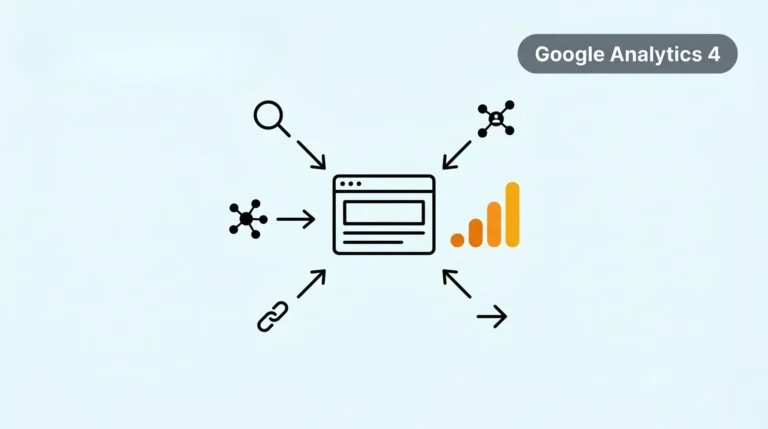
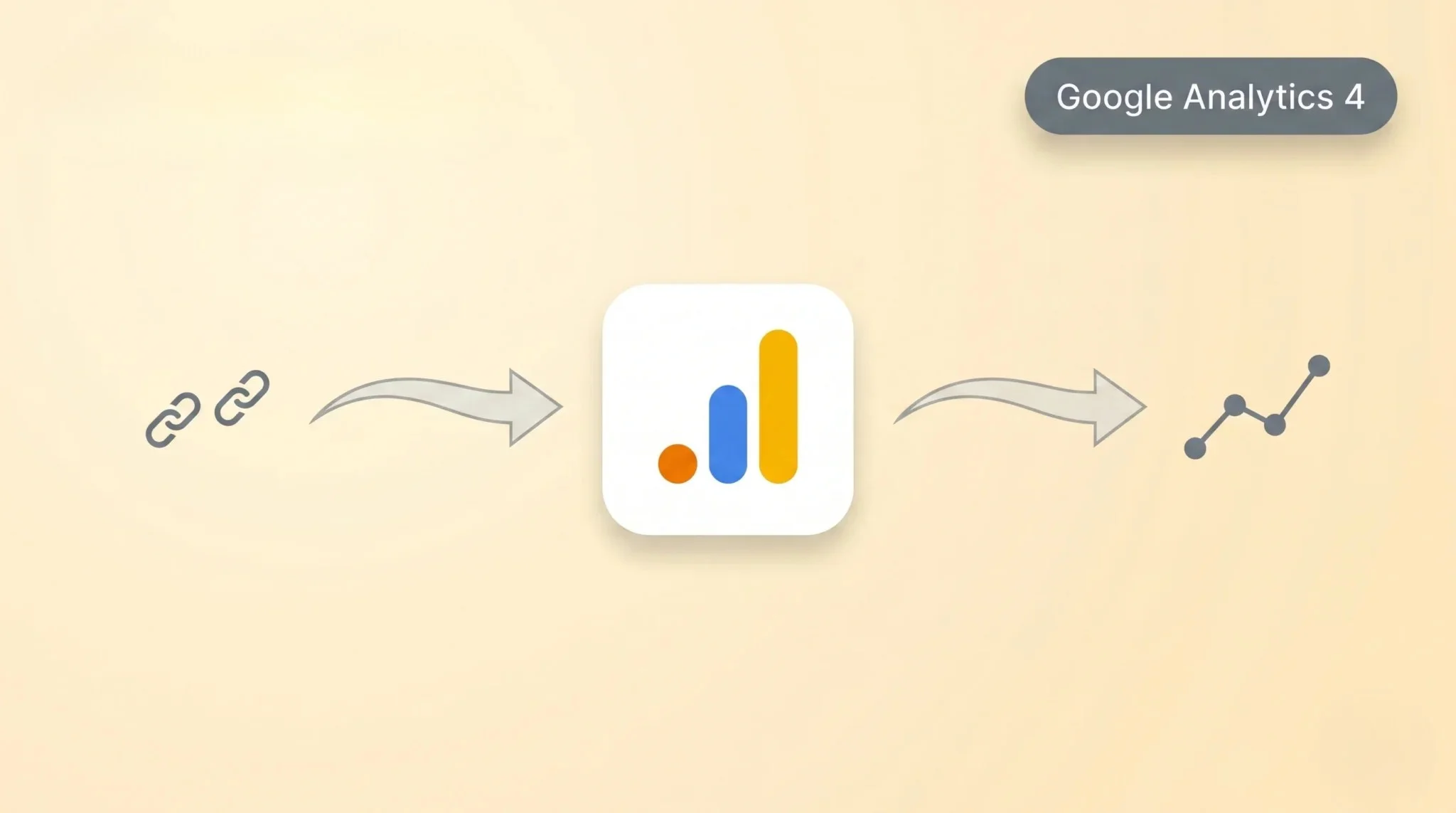
Google Analytics 4 tracks backlinks through referral traffic. When a user clicks a link from another website and lands on your site, GA4 records it as a referral visit. This allows you to see which external sites send traffic to you and how different traffic sources perform. Each referral visit includes data like source, medium, and user behavior.
You can check which websites bring traffic and how users interact after landing. This helps you understand the value of your backlinks. Referral data does not show every backlink, but it shows active links that drive traffic. This makes it useful for analyzing link performance and SEO impact.
How to Check Backlinks in GA4 (Step-by-Step)
You can find backlink data in Google Analytics 4 through referral traffic. This method shows which websites send visitors to your site and how those links perform.
Step 1: Open Traffic Acquisition Report
Start by logging into your GA4 account. Select the correct property and data stream for your website. Then go to Reports → Acquisition → Traffic Acquisition. This report shows all traffic sources, such as organic, direct, and referral.
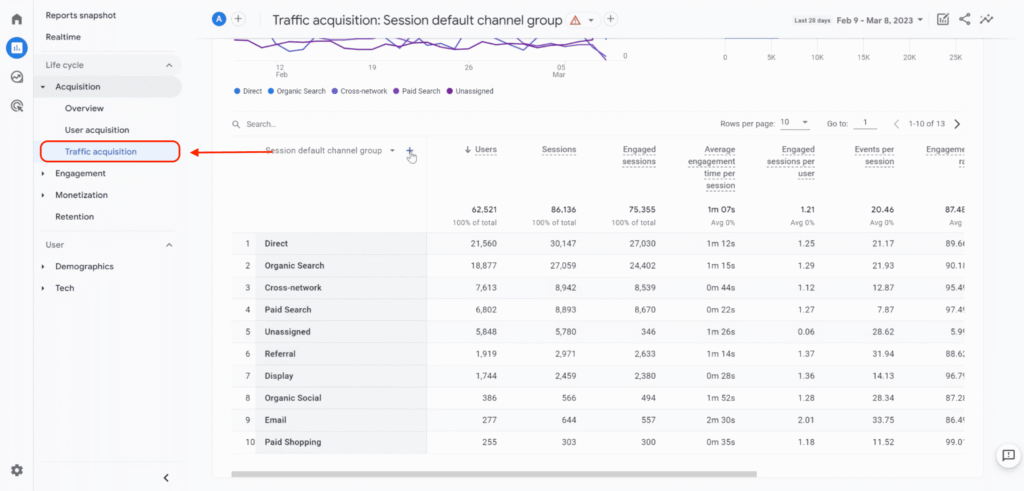
Step 2: Change to Session Source/Medium
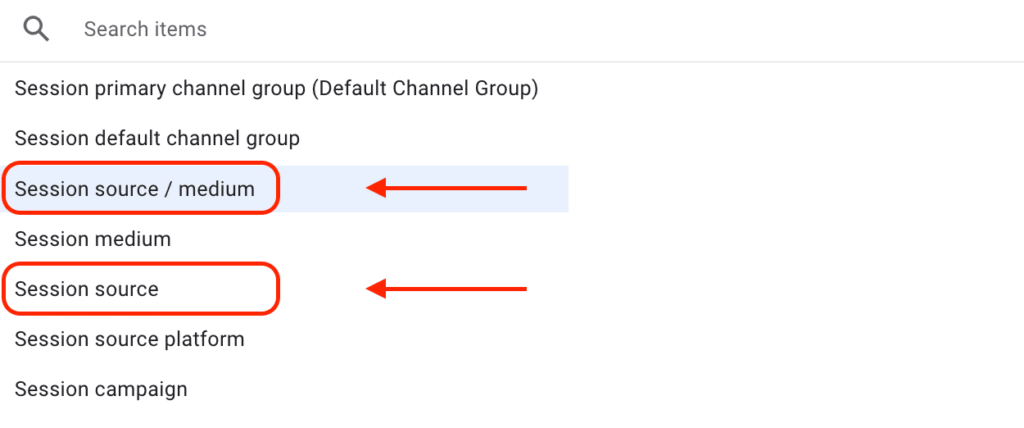
By default, GA4 shows the Session default channel group, which is too broad. Click on the dropdown above the table and select Session source/medium or Session source. This will show the actual domains that send traffic to your site.
Step 3: Filter Referral Traffic
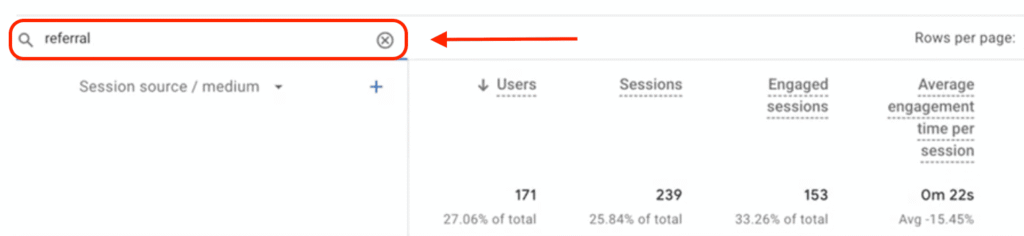
Now go to the search bar above the table. Type referral and apply the filter. This will show only referral traffic, which represents your active backlinks.
Step 4: Analyze Referring Domains
You will now see a list of websites linking to your site. Check which domains send the most traffic and engagement.
Focus on sources that bring users who stay longer or convert.
Keep in mind, GA4 does not show all backlinks. It only shows links that generate traffic. This makes it useful for analyzing backlink performance, not total link count.
How to Identify High Quality Backlinks
Not all backlinks bring value. You need to focus on links that send quality traffic and drive results. Google Analytics 4 helps you measure this using user behavior data, but this data is only accurate when your tracking setup, including the Measurement ID, is properly configured. First, check traffic quality from referral sources. Look at how many users come from each domain and which sources bring consistent traffic. High-quality backlinks send steady and relevant visitors.
Next, analyze engagement. Check metrics like engagement rate and average engagement time. If users stay longer and interact with your site, the backlink has value. Finally, track conversions from referral traffic. See which sources lead to actions like sign-ups or purchases. Backlinks that drive conversions are the most valuable for your SEO and business growth.
Best Alternative Tools for Backlink Analysis
Google Analytics 4 shows referral traffic, but it does not provide full backlink data. You need dedicated tools for complete analysis.
Here are the best options:
Use these tools with GA4 to get a complete view of your backlinks and performance.
Common Mistakes to Avoid
Many users misunderstand how backlinks work in Google Analytics 4. These mistakes lead to wrong analysis and poor SEO decisions. You need to avoid them to get accurate insights.
Here are common mistakes:
Avoid these mistakes to improve your backlink strategy and SEO performance.
Conclusion
Google Analytics 4 does not show backlinks directly, which confuses many users. It tracks backlinks through referral traffic instead. You can use this data to see which websites send visitors to your site. This helps you understand the real impact of your backlinks.
To get full backlink data, you need tools like Google Search Console along with GA4. Combine these tools to analyze traffic, engagement, and conversions. Focus on high-quality links that bring real users and results. This approach helps you build a stronger and more effective SEO strategy.