GA4 Measurement ID Explained (What It Is and How to Find It)
Many users feel confused when setting up Google Analytics 4 for their website. They see the term Measurement ID but do not understand its purpose. This often leads to mistakes during setup and tracking issues. Without proper setup, your data may not be recorded correctly.
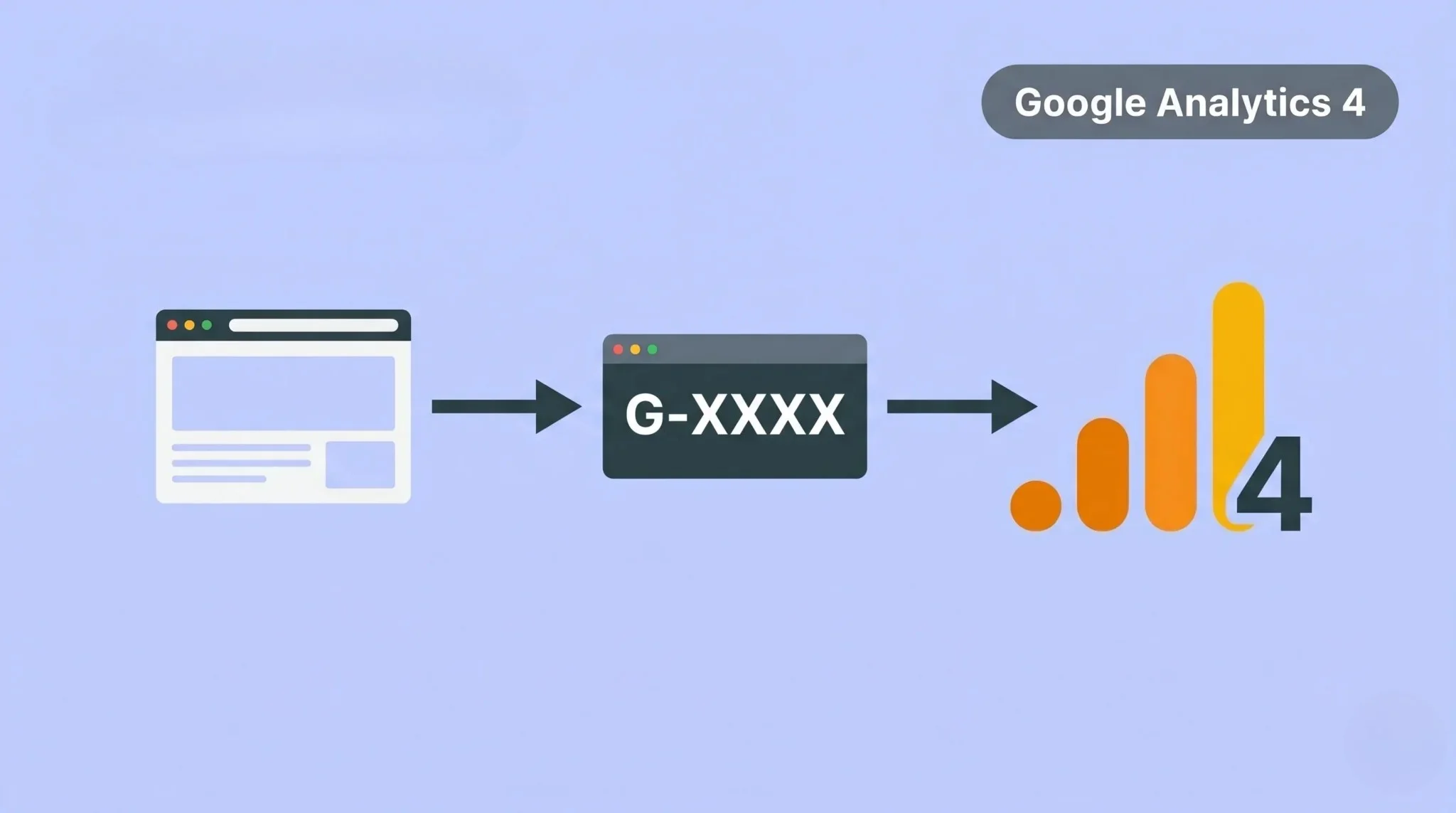
The Measurement ID plays a key role in GA4 tracking. It connects your website with your analytics property and sends data to your account. Without it, GA4 cannot track user activity. In this guide, you will learn what a Measurement ID is and how to find and use it correctly.
What is a Measurement ID in Google Analytics 4
A Measurement ID is a unique code used to track data in GA4. It connects your website or app with your analytics property. This ID ensures that user activity gets recorded correctly in your account. The Measurement ID usually starts with G- followed by a series of letters and numbers. For example, it may look like G-ABC123XYZ.
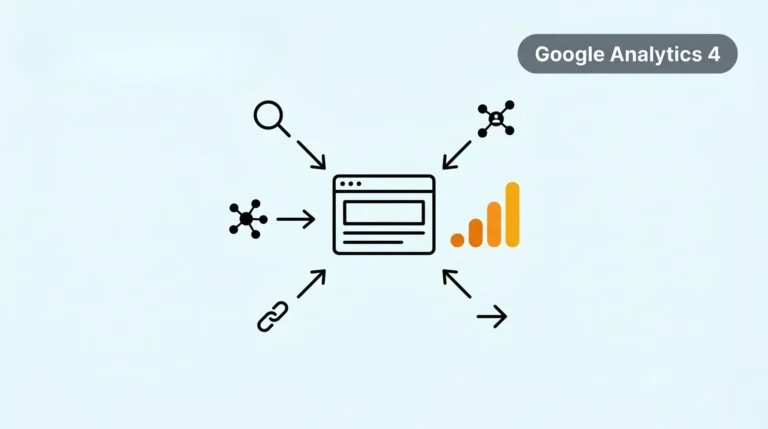
Each GA4 property has its own unique Measurement ID, which works as a direct link between your website and GA4. When you install it on your site, it starts collecting data for different traffic sources, including social media tracking. This allows you to track traffic, events, and user behavior.
Why Measurement ID Is Important
The Measurement ID is essential for tracking data in Google Analytics 4. It connects your website with your GA4 property and ensures data flows correctly. Without this connection, GA4 cannot collect any user data. This makes the Measurement ID a core part of your setup.
This ID allows GA4 to track user activity like page views and events, ensuring that data is collected consistently and can be processed efficiently through marketing automation. It helps you understand how users interact with your site while keeping your reporting accurate. If the ID is wrong, your data may go to the wrong property.
How to Find Measurement ID in Google Analytics 4
Finding your GA4 Measurement ID is simple. You just need to follow a few steps inside your account. This ID is required for tracking setup, so you should copy it correctly.
Step 1: Log in to Google Analytics
Open your GA4 account and sign in. Make sure you select the correct property from your dashboard.
Step 2: Go to Admin Settings
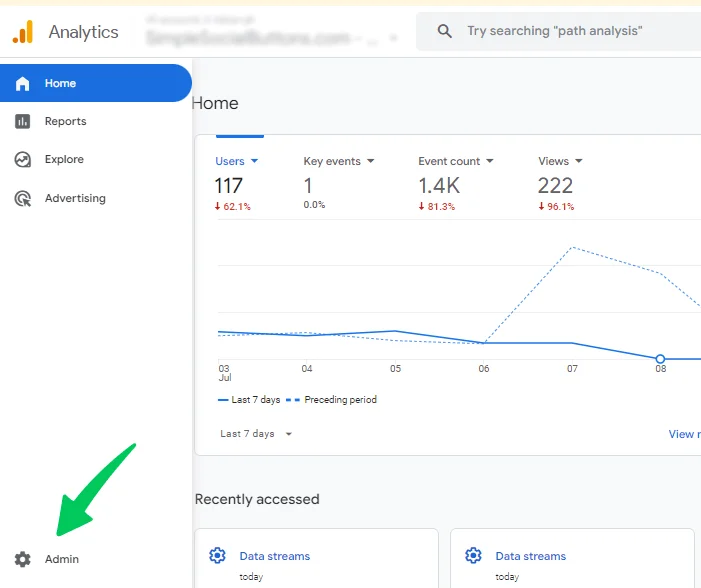
Click on the Admin (gear icon) at the bottom left. This will open your account and property settings.
Step 3: Open Data Streams
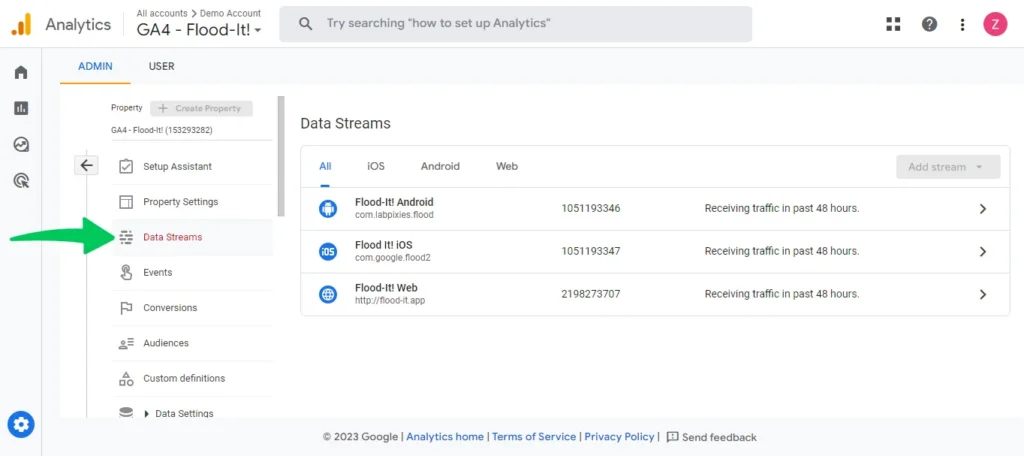
Under the property column, click on Data Streams. This section shows all your connected data sources.
Step 4: Select Your Data Stream
Choose the web stream connected to your website. This will open detailed settings for your data source.
Step 5: Find Your Measurement ID
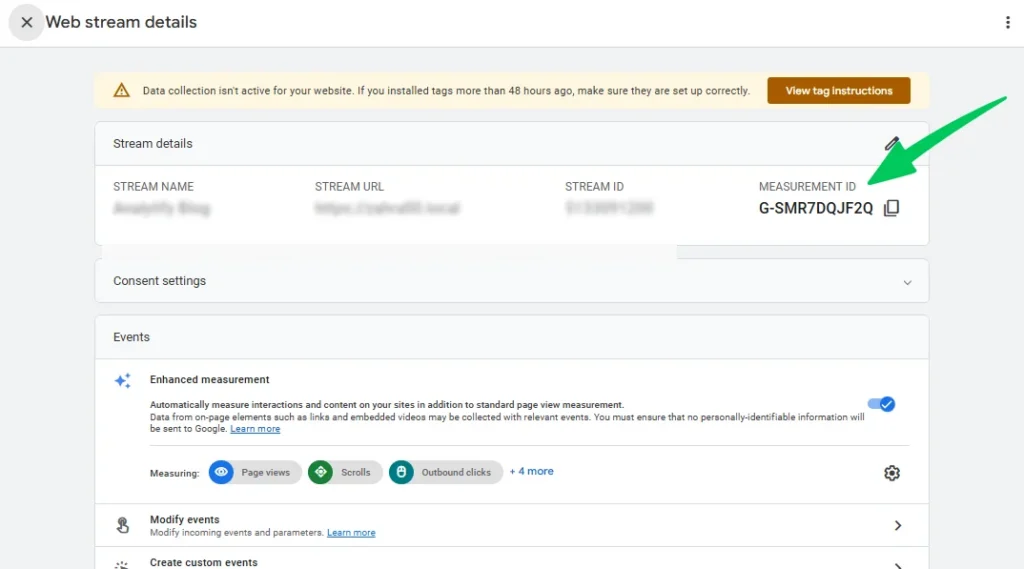
At the top of the screen, you will see your Measurement ID. It starts with G- followed by letters and numbers. Make sure to copy this ID and use it correctly in your tracking setup.
Where to Use GA4 Measurement ID
You need to use the Measurement ID in the right places to start tracking data in Google Analytics 4. This ID connects your website with GA4 and sends user data to your account. Without proper use, tracking will not work.
You can use the Measurement ID in different ways based on your setup. The most common method is adding it to your website code. You can also use it through tools like Google Tag Manager or CMS platforms.
Common places to use Measurement ID:
Using the correct setup ensures your data is tracked properly and appears in your GA4 reports.
Measurement ID vs Tracking ID (UA vs GA4)
Measurement ID in Google Analytics 4 is different from the old Tracking ID used in Universal Analytics. Both serve the same purpose, but they work in different ways. GA4 introduced Measurement ID with a new tracking system. The Tracking ID in Universal Analytics started with UA- and was used for session-based tracking. GA4 uses Measurement ID, which starts with G-, and focuses on event-based tracking.
This means GA4 tracks user interactions more accurately. The main difference is how data is collected and processed. GA4 provides more flexible and detailed tracking compared to the old system. This helps you get better insights into user behavior.
Common Mistakes to Avoid
Many users face issues with the Measurement ID because of small setup errors. These mistakes can stop tracking or send incomplete data to Google Analytics 4. You need to set it up correctly from the start.
Here are common mistakes:
Avoid these mistakes to ensure your tracking works smoothly. Always verify your setup before relying on data.
Conclusion
The Measurement ID is a key part of the Google Analytics 4 setup. It connects your website with your analytics account and enables data tracking. Without it, GA4 cannot collect user data or show reports. This makes it essential for proper tracking.
Make sure you find and use the correct Measurement ID. Set it up properly and test your tracking before analyzing data. Accurate setup leads to reliable insights and better decisions.