GA4 Migration Guide (How to Move from Universal Analytics to Google Analytics 4)
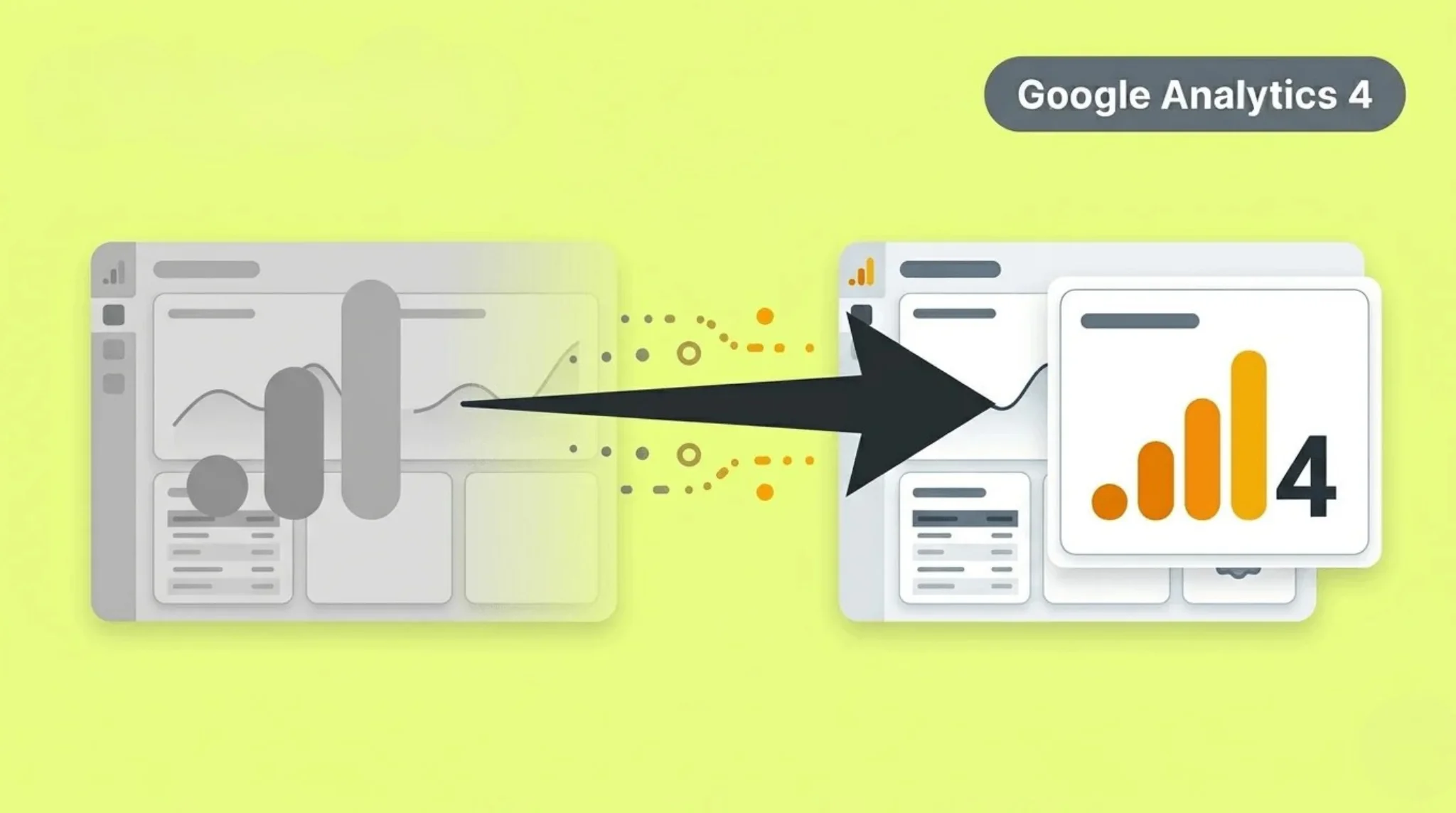
Many users struggled when moving from Universal Analytics to Google Analytics 4. The new system works differently and requires a fresh setup. This makes migration confusing, especially for beginners. Without proper setup, you may lose important tracking data.
GA4 migration is not just an upgrade but a complete shift in tracking. It uses an event-based model instead of sessions. This gives you better insights into user behavior. In this guide, you will learn how to migrate from Universal Analytics to GA4 step by step.
What Is GA4 Migration
GA4 migration means moving from Universal Analytics to Google Analytics 4. It is not a simple upgrade because GA4 uses a different tracking system. You need to set up a new property and configure tracking again. This process ensures your data is collected correctly in the new system, and understanding how GA4 tracking differs from tools like Microsoft Clarity can make the transition easier.
GA4 works on an event-based model instead of sessions. This changes how data is tracked and reported. You also need to recreate events, conversions, and reports. Migration helps you continue tracking data and adapt to the new analytics standard.
Why You Need to Migrate to Google Analytics 4
Universal Analytics is no longer active for new data collection. This means you cannot rely on it for future tracking. Migrating to GA4 ensures your data continues without interruption. It helps you stay updated with the latest analytics system.
GA4 also provides better tracking and insights. It uses an event-based model and supports cross-device tracking. This gives you a clearer view of user behavior. It also includes improved privacy features and flexible reporting.
Migrating early helps you avoid data loss. It allows you to build historical data in GA4. This makes your analysis more accurate over time.
Key Differences Between UA and GA4
Google Analytics 4 works very differently from Universal Analytics. The biggest change is the tracking model. Understanding these differences helps you migrate correctly and use GA4 effectively.
Universal Analytics uses a session-based model, while GA4 uses an event-based model where every interaction is tracked as an event. This gives more detailed and flexible data, making it easier to measure outcomes with GA4 conversion tracking.
GA4 also supports cross-device tracking and better privacy controls. Reports and metrics are different from UA. This requires you to learn a new way of analyzing data.
GA4 Migration Checklist
Before starting the migration, you need a clear plan. A checklist helps you avoid missing important steps. This ensures a smooth transition to Google Analytics 4.
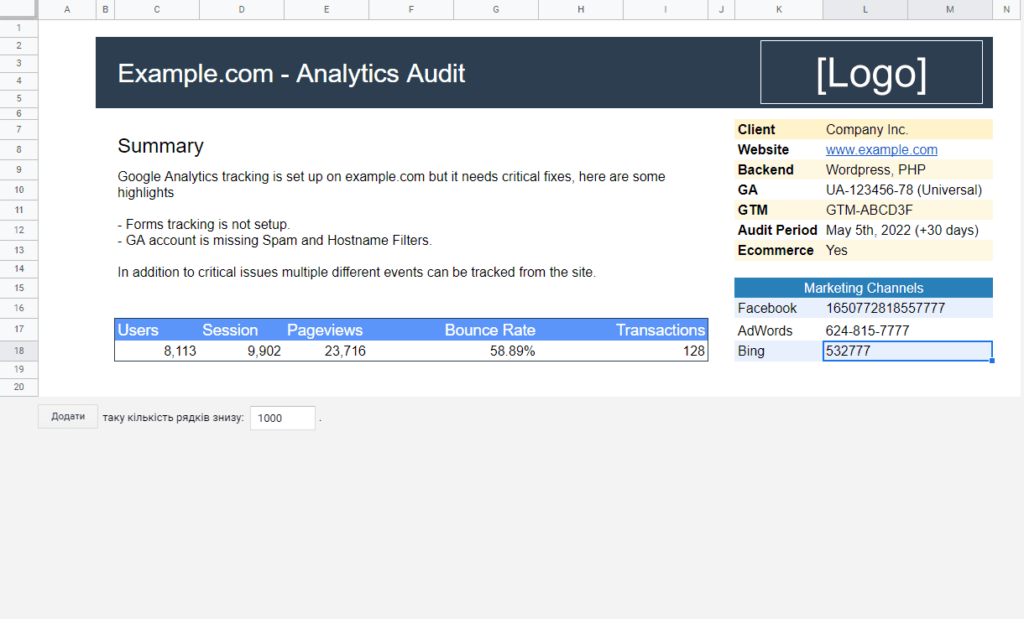
Audit Your Universal Analytics Property
Review your current UA setup. Check goals, events, and tracking settings. This helps you know what needs to be migrated.
Plan GA4 Account Structure
Decide how you want to organize your GA4 account. Plan properties, data streams, and tracking setup. This makes your migration structured.
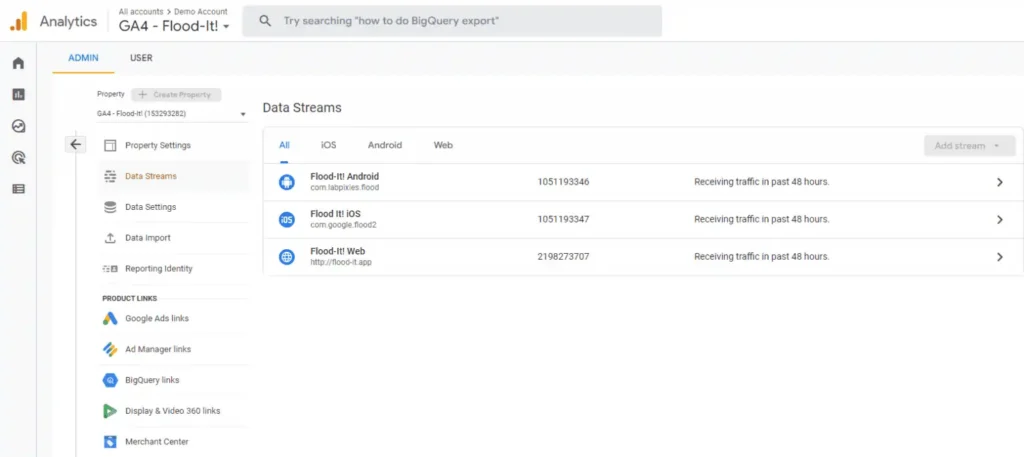
Check Property Settings
Review settings like time zone and data retention. Make sure they match your business needs. Correct settings ensure accurate data.
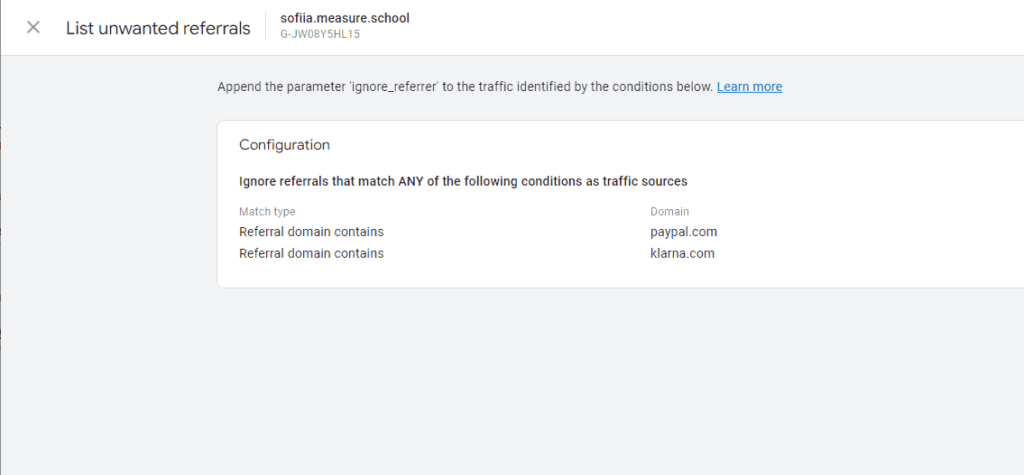
Identify Events and Conversions
List important events and goals from UA. These need to be recreated in GA4. This ensures you continue tracking key actions.
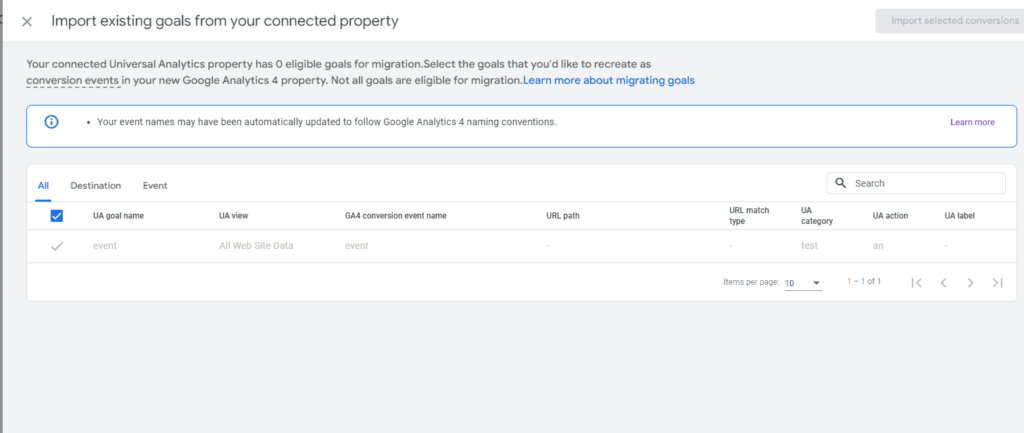
Set Up Custom Dimensions
Identify custom metrics and dimensions used in UA. Recreate them in GA4 if needed. This helps maintain detailed tracking.
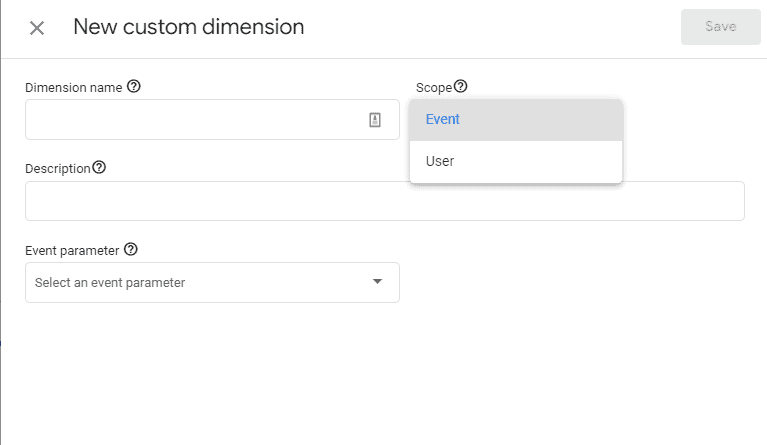
Step-by-Step GA4 Migration Process
You can migrate to Google Analytics 4 by following a clear process. Each step ensures your tracking works correctly in the new system. This helps you avoid data loss and setup issues.
Step 1: Create GA4 Property
Go to Google Analytics and create a new GA4 property. This will be your main setup for tracking data.
Step 2: Add Data Stream
Create a web data stream and enter your website details. This connects your site with GA4.
Step 3: Install Tracking Code
Add the GA4 tracking code to your website. You can use manual setup or Google Tag Manager.
Step 4: Recreate Events and Conversions
Set up important events and mark them as conversions. This ensures you track key actions.
Step 5: Set Up eCommerce Tracking
If you run an online store, configure eCommerce events. This helps track purchases and revenue.
Step 6: Link GA4 with Other Tools
Connect GA4 with tools like Google Ads or Search Console. This improves data analysis.
Step 7: Verify Tracking
Check Realtime reports to confirm data is being collected. This ensures your setup is working correctly.
What Happens to UA Data
Your existing data in Universal Analytics does not automatically move to Google Analytics 4. GA4 starts collecting data from the moment you set it up. This means there is no direct transfer of historical data between the two systems.
You can still access your old UA data for reference if it is exported or saved. However, new data will only be tracked in GA4. This makes it important to set up GA4 as early as possible.
Because of these limitations, many users export important reports before migration. This helps you keep historical insights for future analysis.
Common Migration Mistakes to Avoid
Many users make mistakes while migrating to Google Analytics 4. These errors can lead to missing data or incorrect tracking. You need to handle migration carefully for accurate results.
Skipping Proper Audit
Not reviewing your Universal Analytics setup can cause missing events and goals. Always audit your existing data before migration.
Not Recreating Events and Conversions
GA4 does not import your old goals automatically. You must set up events and conversions again.
Incorrect Tracking Setup
If the tracking code is not installed properly, GA4 will not collect data. Always verify your setup.
Ignoring Data Differences
GA4 uses a different tracking model. Comparing UA and GA4 data directly can be misleading.
Delaying Migration
Waiting too long can result in loss of valuable data. Start migration early to build historical data.
Frequently Asked Questions
Conclusion
Migrating to Google Analytics 4 is essential for modern analytics. It helps you continue tracking data and understand user behavior. GA4 offers better insights and more flexible tracking. This makes it a powerful upgrade from Universal Analytics.
Plan your migration carefully and follow each step properly. Recreate events, verify tracking, and monitor your data. Avoid common mistakes and start early to build data history. This approach ensures a smooth and successful migration.