How to Link Google Ads to Google Analytics 4
Many users run ads in Google Ads but struggle to track results in Google Analytics 4. They get clicks and traffic, but cannot see which campaigns drive conversions. This makes it hard to measure performance and optimize campaigns. Without proper tracking, you may waste budget on low-performing ads.
Linking Google Ads with GA4 solves this problem. It allows you to track user behavior, conversions, and campaign performance in one place. You can see how users interact with your site after clicking ads. In this guide, you will learn how to link both platforms step by step.
Why Link Google Ads with Google Analytics 4
Linking Google Ads with GA4 helps you track your campaigns more accurately. You can see how users behave after clicking your ads. This gives you a clear view of performance beyond just clicks. You can also track conversions like purchases, sign-ups, and form submissions. This helps you understand which campaigns generate real results.
It allows you to focus on high-performing ads and improve weak ones. Linking both tools also improves your ROI tracking. You can measure the full customer journey from ad click to conversion, and by analyzing this data with segments, you can better understand how different user groups respond to your campaigns. This helps you make better decisions and optimize your ad budget.
Requirements Before Linking
Before you link Google Ads with Google Analytics 4, make sure you meet these requirements. These steps ensure a smooth setup and proper data tracking.
Meeting these requirements helps you avoid errors during linking and ensures accurate data flow.
How to Link Google Ads to Google Analytics 4
To link Google Ads with GA4, you need to follow a simple setup process inside your GA4 account. This connection allows both platforms to share data and improve tracking.
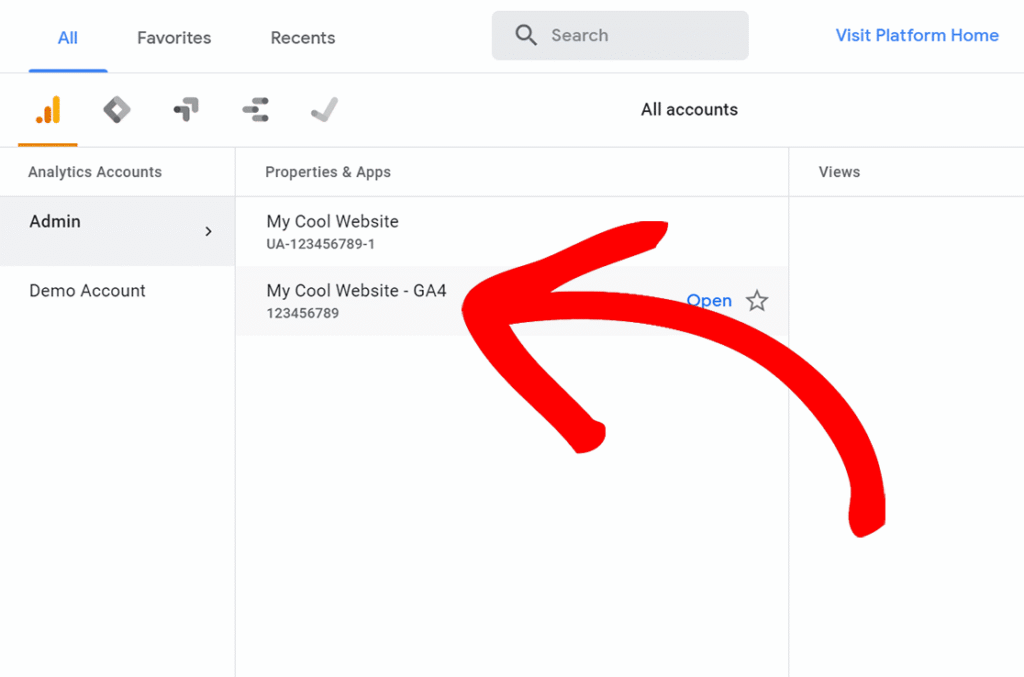
Step 1: Select Your GA4 Property
Log in to your GA4 account and choose the correct property. Make sure you select the property connected to your website.
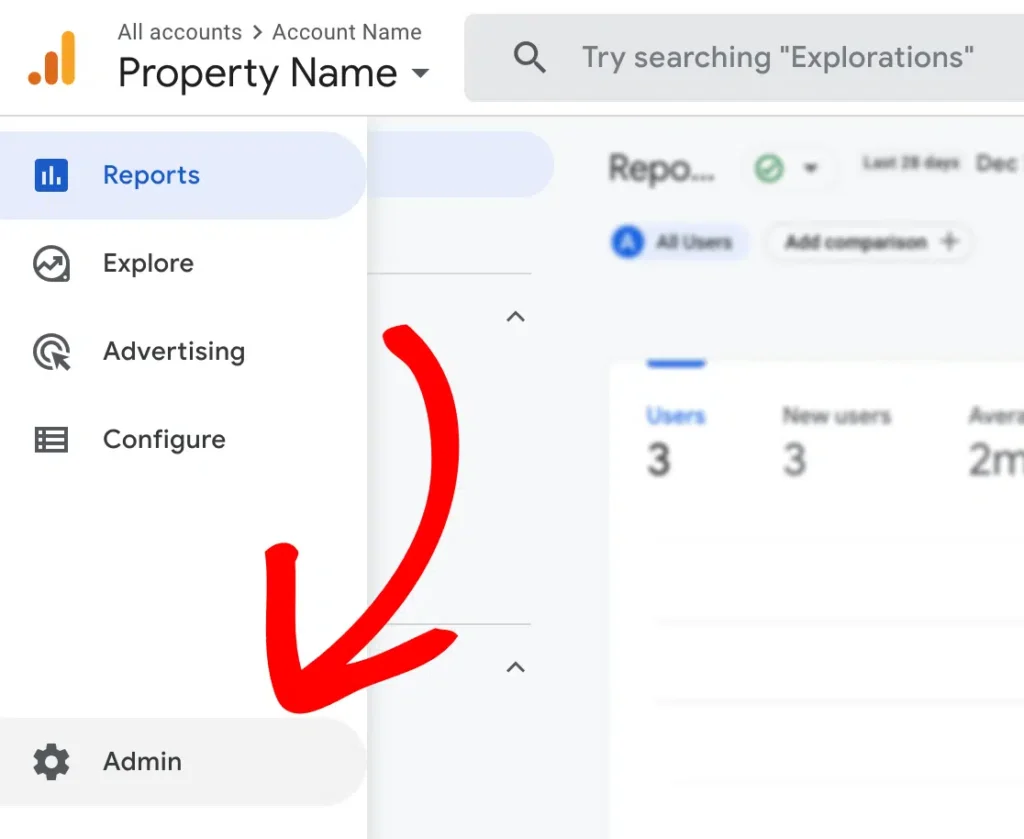
Step 2: Open Admin Settings
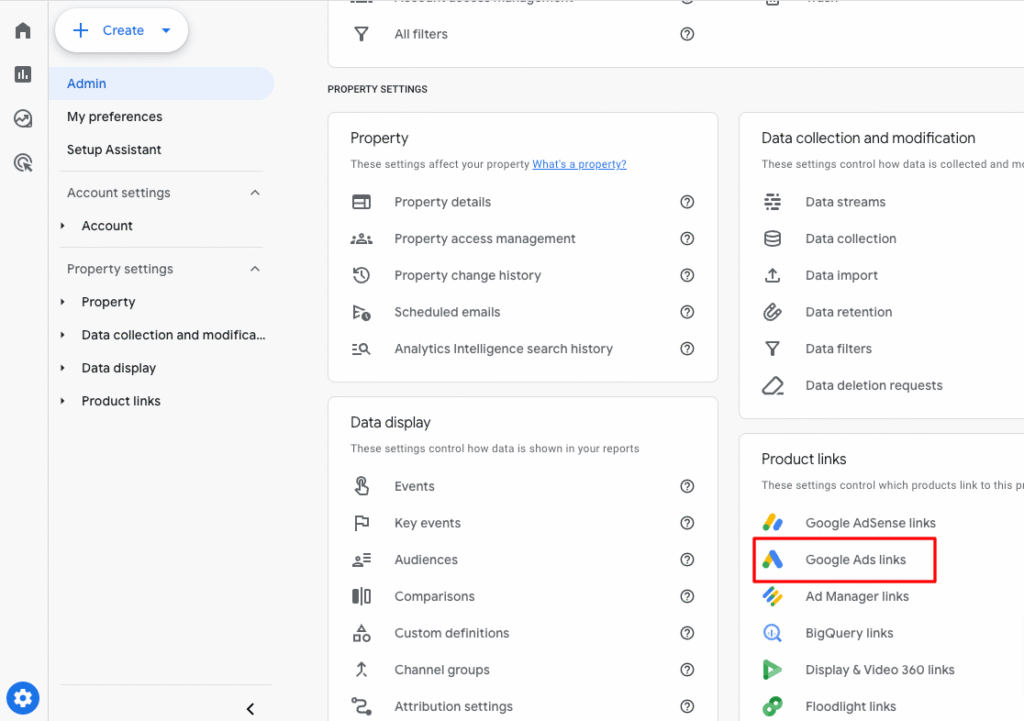
Click on the Admin (gear icon) at the bottom left. This will open your account and property settings.
Step 3: Go to Google Ads Links
In the property column, find and click Google Ads Links. This section is used to connect your Ads account.
Step 4: Click the Link Button
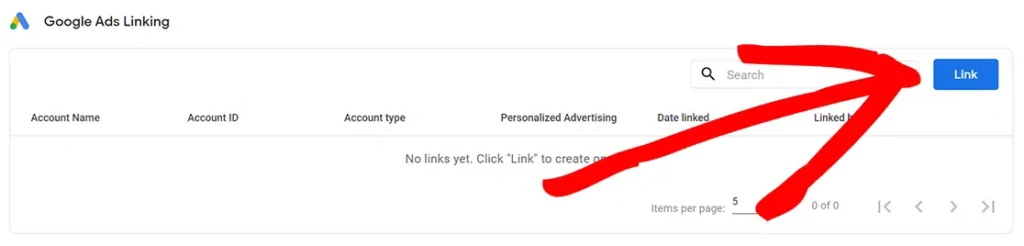
Click the Link button to start the connection process. This will open the setup screen.
Step 5: Choose Google Ads Account
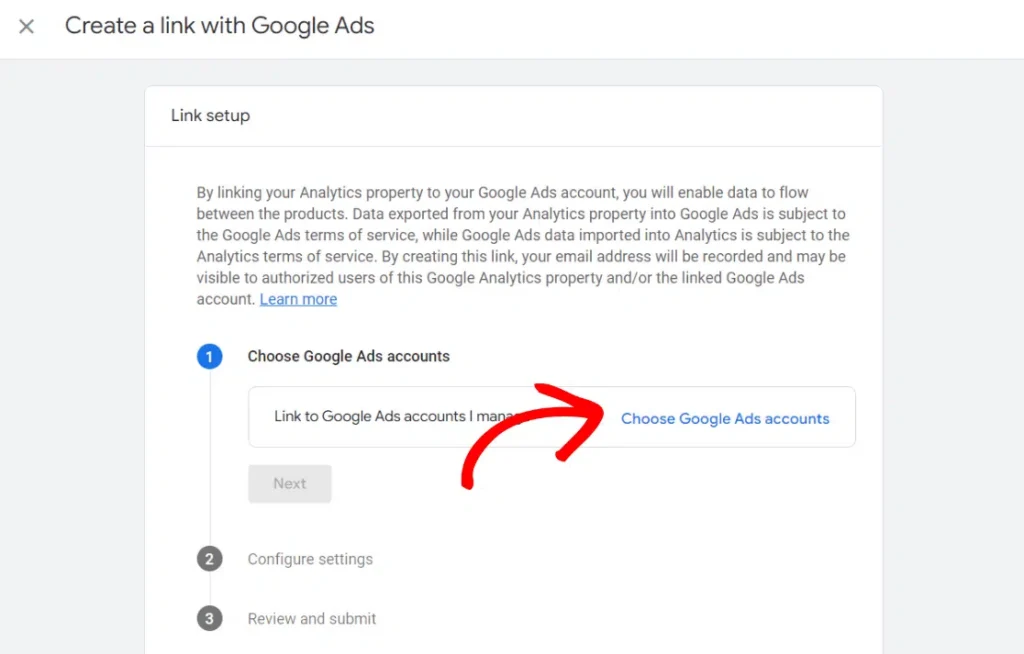
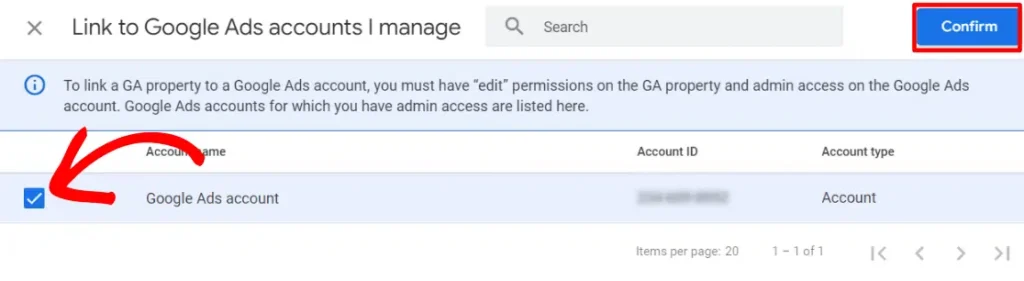
Click on Choose Google Ads accounts. Select the account you want to link and click Confirm.
Step 6: Review and Continue
Check your selected account and click Next. Make sure everything is correct before moving forward.
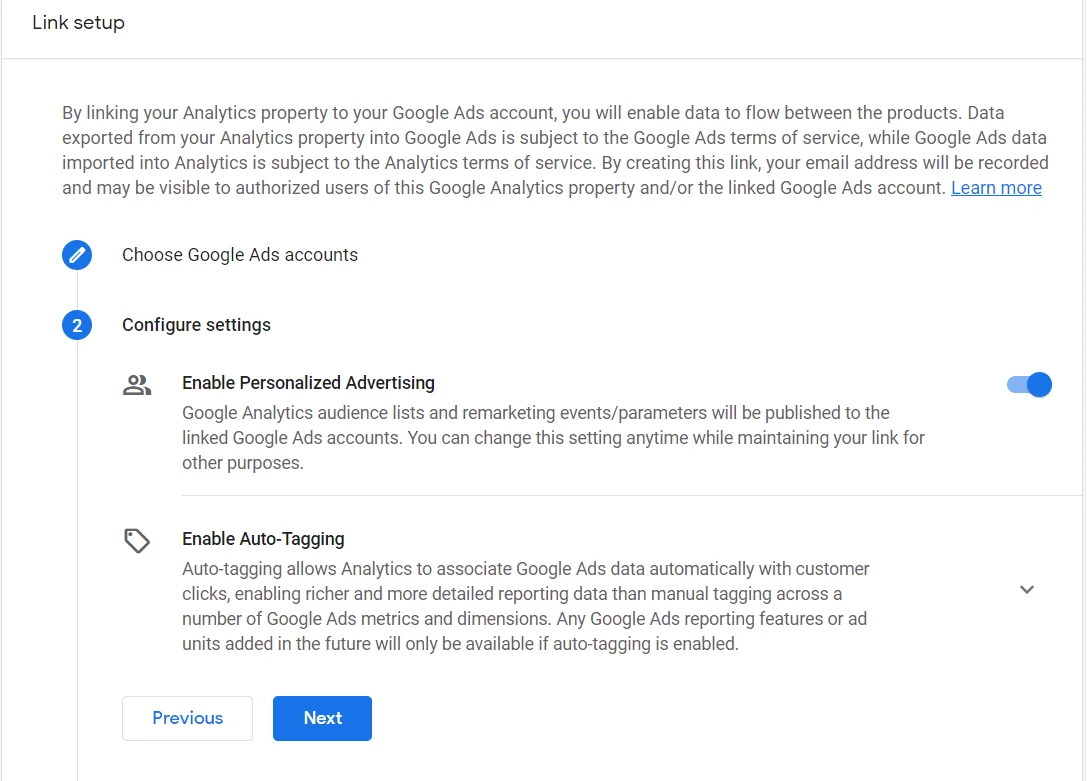
Step 7: Configure Settings
Choose your data sharing settings, like personalized advertising. You can change these settings later if needed.
Step 8: Submit the Link
Click Next and then Submit to complete the setup. Your Google Ads and GA4 accounts are now connected.
How to Import Conversions from Google Analytics 4 to Google Ads
Importing conversions helps you track results from your ads. It allows Google Ads to use GA4 data for better optimization. This improves your campaign performance and targeting.
Step 1: Open Google Ads
Log in to your Google Ads account. Make sure it is linked with your GA4 property.
Step 2: Go to Conversions
Click on Tools and Settings at the top. Then select Conversions under the measurement section.
Step 3: Add New Conversion Action
Click the + New conversion action button. Choose Import as your conversion source.
Step 4: Select GA4 Property
Choose Google Analytics 4 properties from the list. Then select the conversion events you want to import.
Step 5: Confirm and Import
Click Import and continue. Your GA4 conversions will now appear in Google Ads. After importing, you can use these conversions to track performance. This helps you optimize campaigns and improve ROI.
How to Verify the Connection
After linking Google Ads with Google Analytics 4, you should verify the connection. This ensures data flows correctly between both platforms. It also helps you avoid tracking issues later.
First, go to Admin → Google Ads Links in GA4. Check if your Google Ads account shows as linked and active. This confirms the connection is successful.
You can also check the data in reports. Go to Reports → Acquisition → Traffic Acquisition and look for Google Ads traffic. If you see data from ads, your setup works correctly.
Benefits of Linking Google Ads with Google Analytics 4
Linking Google Ads with GA4 helps you understand your campaign performance better. You can see how users behave after clicking your ads. This gives you more insights than basic ad metrics. You can track important actions like purchases, sign-ups, and clicks. This helps you measure real results instead of just traffic. It also allows you to optimize campaigns based on actual performance, so it is important to manage your analytics setup carefully and avoid actions like deleting a GA4 account without proper review.
Key benefits include:
These benefits help you make better decisions and improve your ad performance.
Conclusion
Linking Google Ads with Google Analytics 4 helps you track campaigns more effectively. It allows you to analyze user behavior, measure conversions, and improve performance. This connection gives you a complete view of your marketing efforts. It also helps you make better decisions based on real data.
Set up the link correctly and verify your data after the connection. Import conversions and monitor your reports regularly. Focus on optimizing high-performing campaigns and improving weak ones. This approach helps you get better results from your ads.