How to See Keywords in Google Analytics 4
If you try to find keywords in Google Analytics 4, you will not see them. Many users face this issue after switching. Reports show traffic, but hide search terms. This creates confusion and breaks your SEO analysis. GA4 does not show organic keywords by default. You need a different method to access them.
Connect GA4 with Google Search Console to unlock keyword data. This setup shows real search queries and helps you track performance, and to measure how these queries turn into actual results, setting up conversion tracking becomes important.
Why You Can’t See Keywords in Google Analytics 4
You cannot see keywords in GA4 because Google hides most organic search terms. This started due to privacy changes. Search engines protect user data and stop sharing full query details. GA4 focuses on events, users, and engagement data.
It does not store keyword-level data from organic traffic. You may see “not provided” or no keyword data at all. To access real search queries, you must use Google Search Console, which collects keyword data directly from search results.
Can You See Keywords Directly in Google Analytics 4?
No, you cannot see organic keywords directly in GA4. The platform does not store search query data. It focuses on user behavior, events, and traffic sources. You may see limited data for paid campaigns or internal search.
However, GA4 does not show organic search terms. To better understand your organic performance, you can analyze related factors such as backlinks, which play an important role in search visibility. To view real keywords, you still need Google Search Console, as it tracks queries from Google search results and provides accurate keyword data.
The Correct Way to See Keywords in GA4
You need to use Google Search Console with Google Analytics 4. GA4 alone does not show organic keywords. Search Console collects real search queries from Google results.
Link both tools to access keyword data inside GA4. This setup shows queries, clicks, impressions, and CTR. You can then match keywords with landing pages and traffic. This method gives you clear SEO insights and better performance tracking.
How to Link Google Analytics 4 with Google Search Console
Step 1: Open GA4 Admin
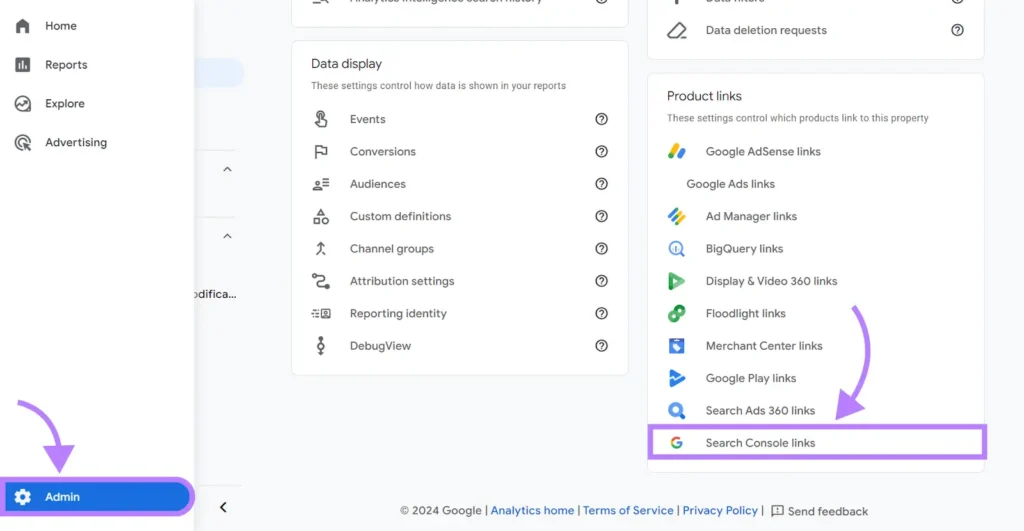
Open your GA4 property. Click the Admin icon at the bottom left. This section controls integrations and data settings.
Step 2: Go to Product Links
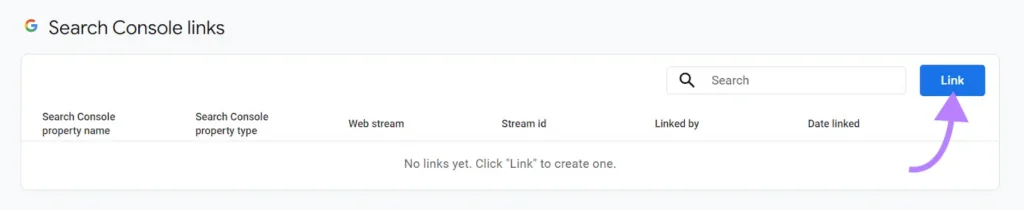
Scroll to Product Links in Admin. Click Search Console Links. Then click the Link button to start.
Step 3: Select Search Console
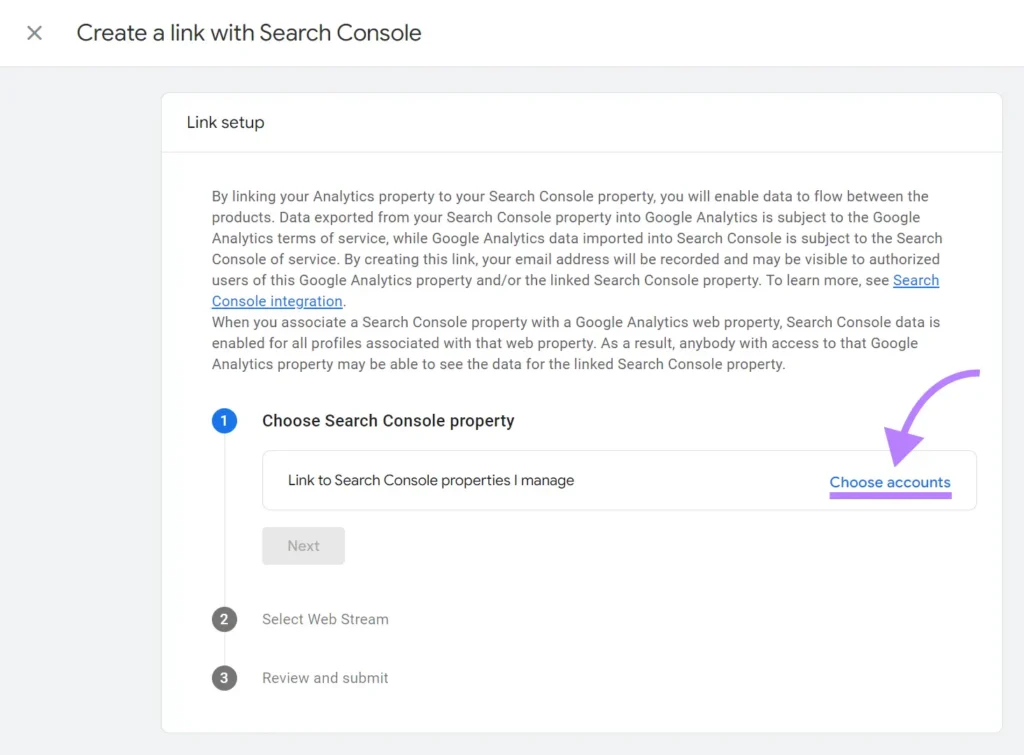
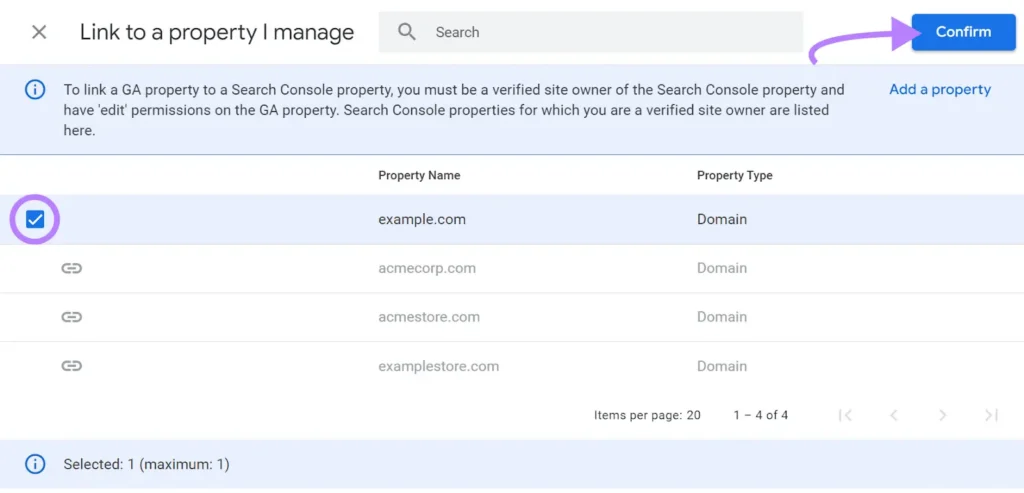
Click Choose accounts. Select your verified Search Console property. Click Confirm to continue.
Step 4: Choose Property + Stream
Select your website stream. Make sure the correct domain appears. Click Next to proceed.
Step 5: Confirm Connection
Review your setup details. Check the property and stream again. Click Submit to complete the connection. Your GA4 now connects with Search Console. You can access keyword data in reports.
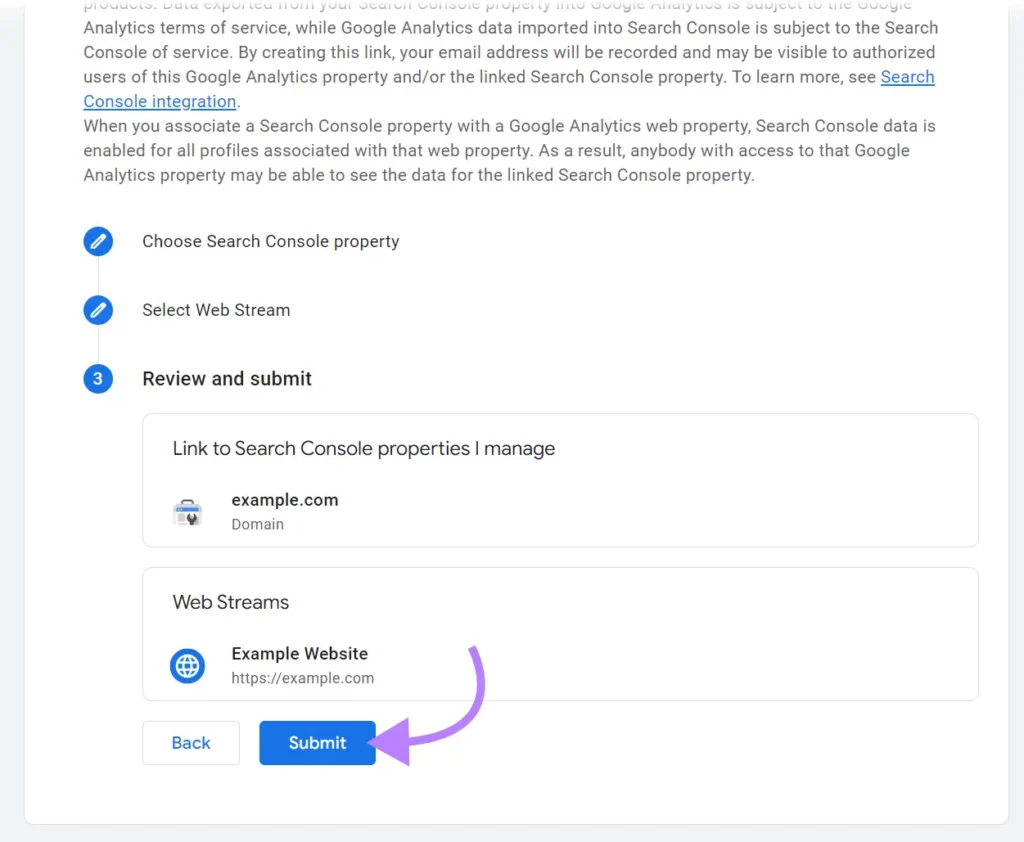
How to See Keywords in Google Analytics 4
After you link GA4 with Google Search Console, keyword data appears inside your reports. You can now track real search queries that drive traffic.
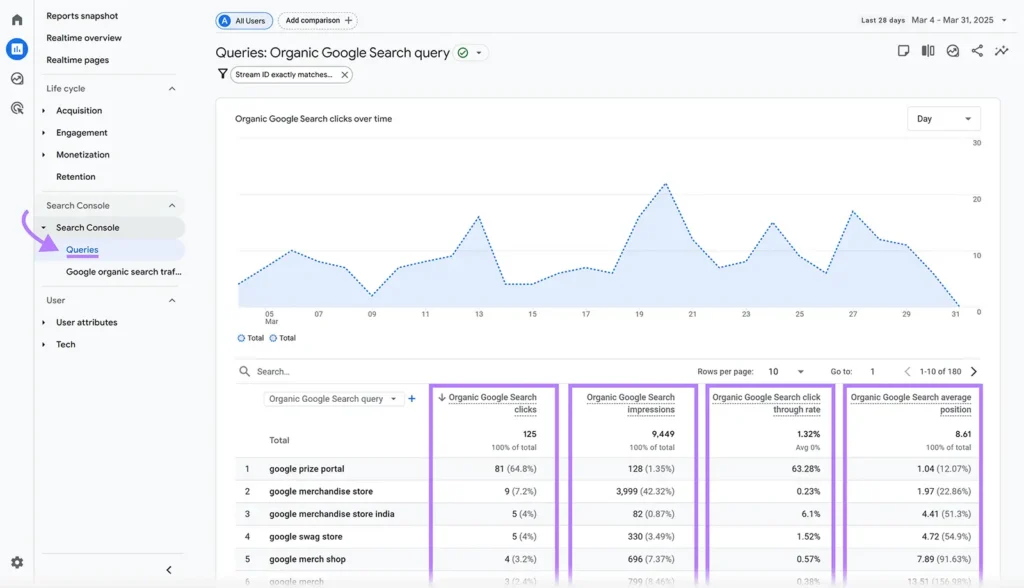
Follow these steps:
This report shows the actual keywords users search on Google. You will see key metrics like:
Use this data to identify high-performing keywords. Focus on queries that bring traffic and conversions. This helps you improve your SEO strategy and content performance.
How to Find Top Organic Keywords in Google Analytics 4
Open the Queries report after you link Google Search Console. This report shows the keywords that drive organic traffic.
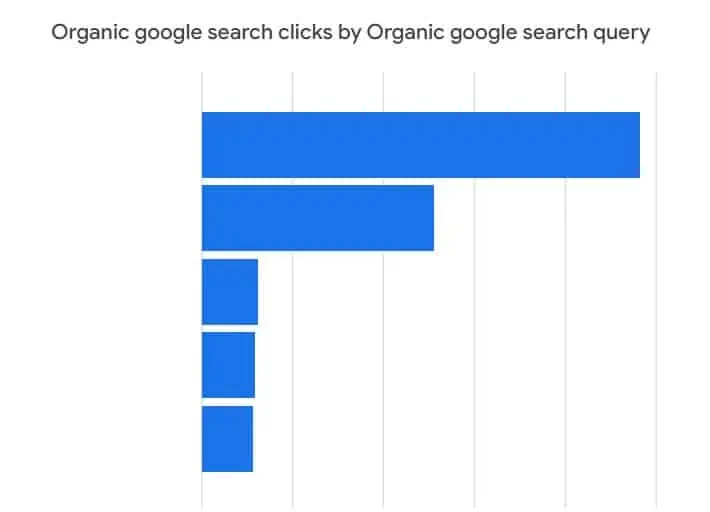
Follow these steps:
You will also see a chart that highlights the top keywords by clicks. This helps you spot your main traffic drivers quickly. Focus on keywords with high clicks and strong CTR. These keywords bring real users to your site.
Limitations of Keyword Data in Google Analytics 4
GA4 does not show complete keyword data. It depends on Google Search Console for search queries. This creates some limits in reporting.
Here are the main limitations:
You also cannot see all the keywords that users search. Google hides some queries for privacy reasons. Because of these limits, you should not rely on GA4 alone. Combine GA4 with Search Console to get better keyword insights.
Conclusion
Keyword data in GA4 needs the right setup. Without proper linking and analysis, you miss valuable insights. Connect your tools, analyze queries, and focus on high-impact keywords. This approach improves your SEO results and traffic growth.