Google Analytics 4 Tutorial (Beginner to Advanced Guide)
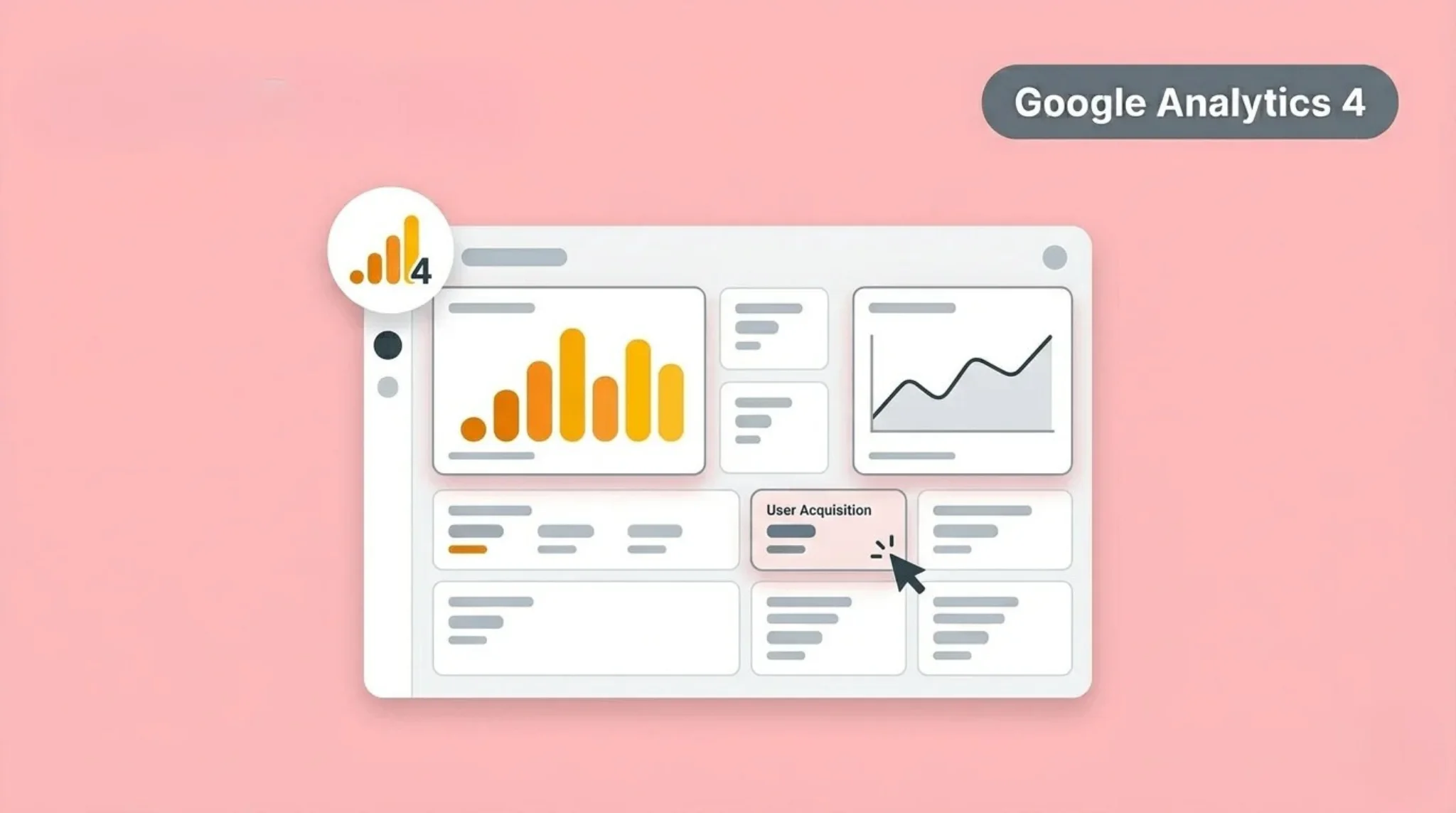
Many users feel confused when they start using Google Analytics 4. The interface looks different, and reports do not work like older versions. This makes it hard to track data and understand performance. Many users struggle to find basic metrics and reports.
GA4 uses a new approach based on events and user behavior. It tracks how users interact with your website across devices. Once you understand its structure, it becomes easier to use. In this tutorial, you will learn how to set up GA4, explore reports, and analyze data step by step.
What Is Google Analytics 4
Google Analytics 4 is a web analytics tool used to track website and app performance. It collects data about users, traffic sources, and interactions. This helps you understand how people use your site, while tools such as Google Search Console vs GA4 explain the difference between user behavior data and search performance data.
GA4 uses an event-based tracking model instead of sessions only. Every action, like clicks, page views, or scrolls, is tracked as an event. This gives you more detailed insights into user behavior.
GA4 also tracks users across devices and platforms. It helps you see the full customer journey. This makes your data more accurate and useful for decision-making.
What Is GA4 Used For
Google Analytics 4 is used to track and analyze how users interact with your website or app. It helps you understand where your traffic comes from and what users do after landing. This gives you clear insights into performance. You can identify which pages attract users and how they behave.
You can also use GA4 to measure conversions and campaign performance. It shows which channels drive results and which need improvement, and with GA4 attribution models, you can understand how each channel contributes to those results. This helps you optimize your marketing strategy and content. Using this data, you can make better decisions and improve overall performance.
How to Set Up Google Analytics 4
Setting up GA4 is simple if you follow each step carefully. This process connects your website with Google Analytics and starts data tracking. You only need a Google account to begin.
Step 1: Create a Google Analytics Account
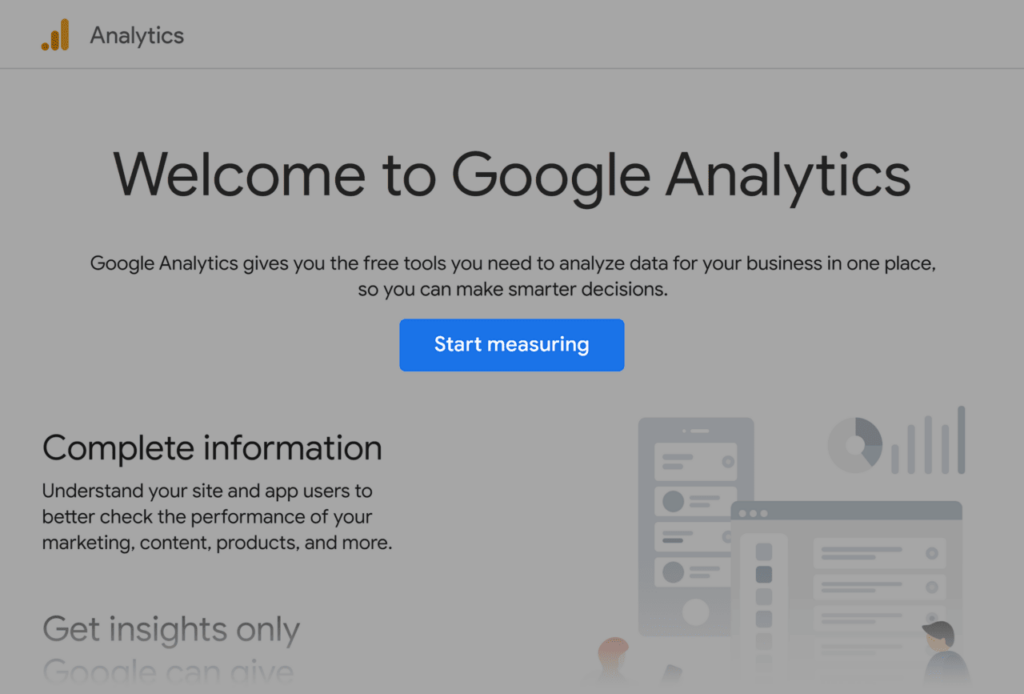
Go to Google Analytics and sign in with your Google account. Click on Start measuring to begin setup. This will take you to the account creation page. Here, you will start setting up your GA4 property.
Step 2: Enter Account Details
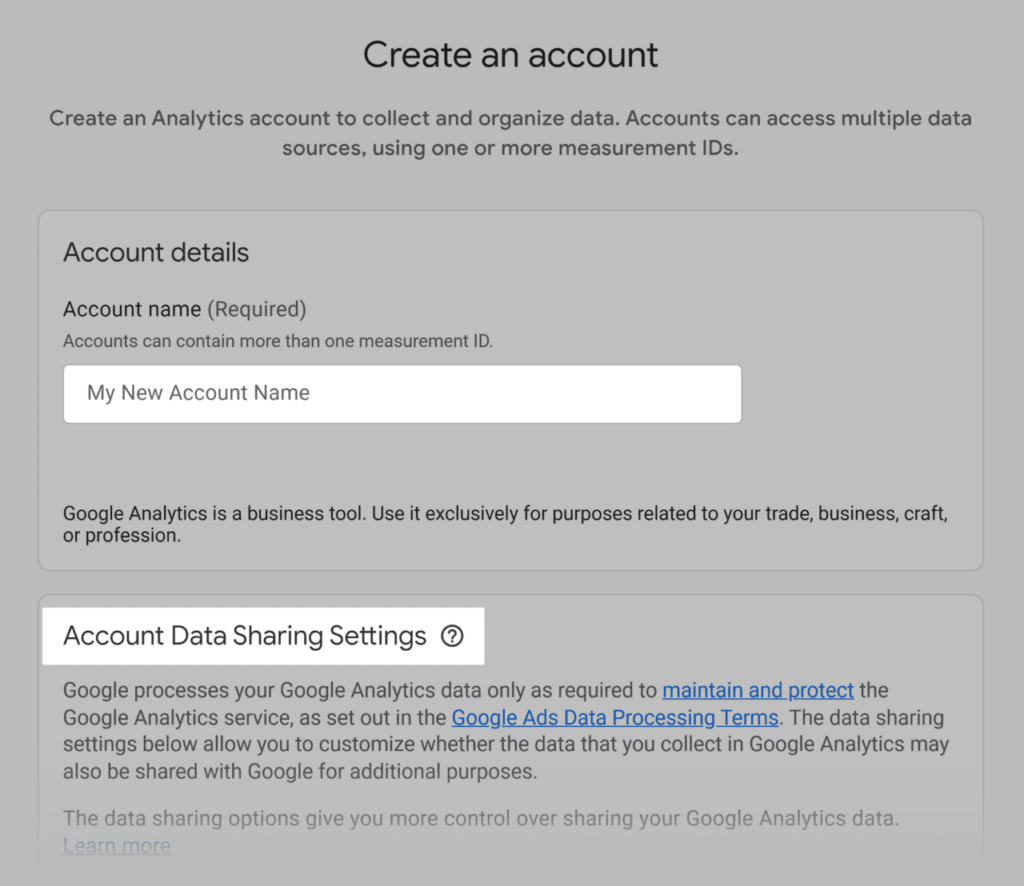
Add your account name, usually your business or website name. Choose your data sharing settings based on your preference. These settings control how data is shared with Google. After that, click Next to continue.
Step 3: Set Up Property
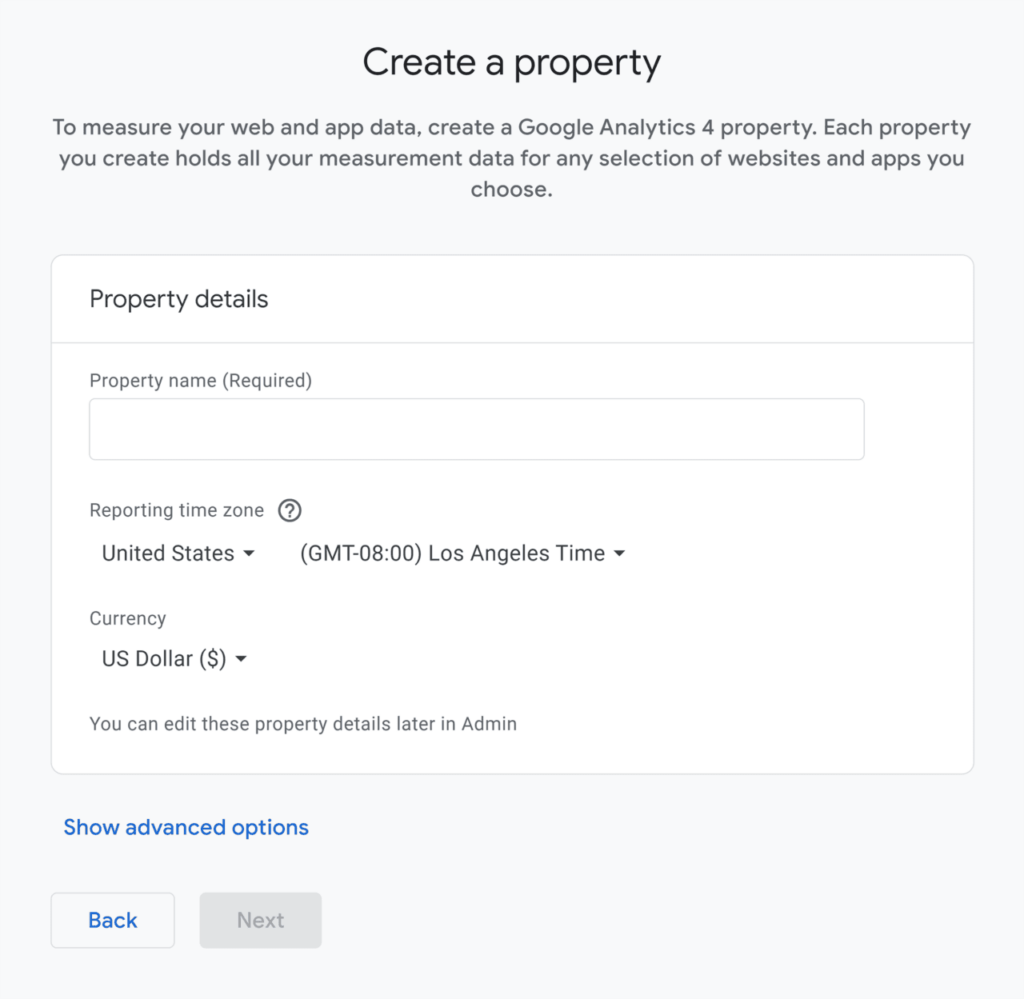
Enter your property name, which represents your website. Set your time zone and currency correctly. GA4 may ask about your business type and goals. Fill in the details and accept the terms to proceed.
Step 4: Create Data Stream
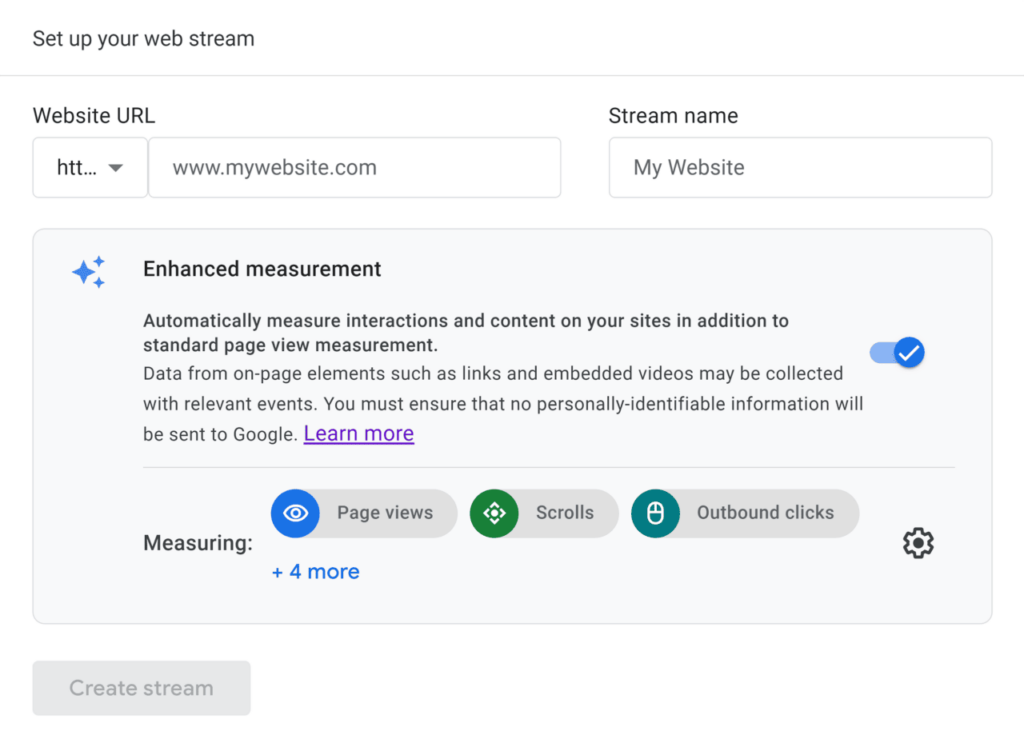
Select Web as your platform to track a website. Enter your website URL and give your stream a name. Keep Enhanced Measurement turned on for automatic tracking. Click Create stream to continue.
Step 5: Install Tracking Code
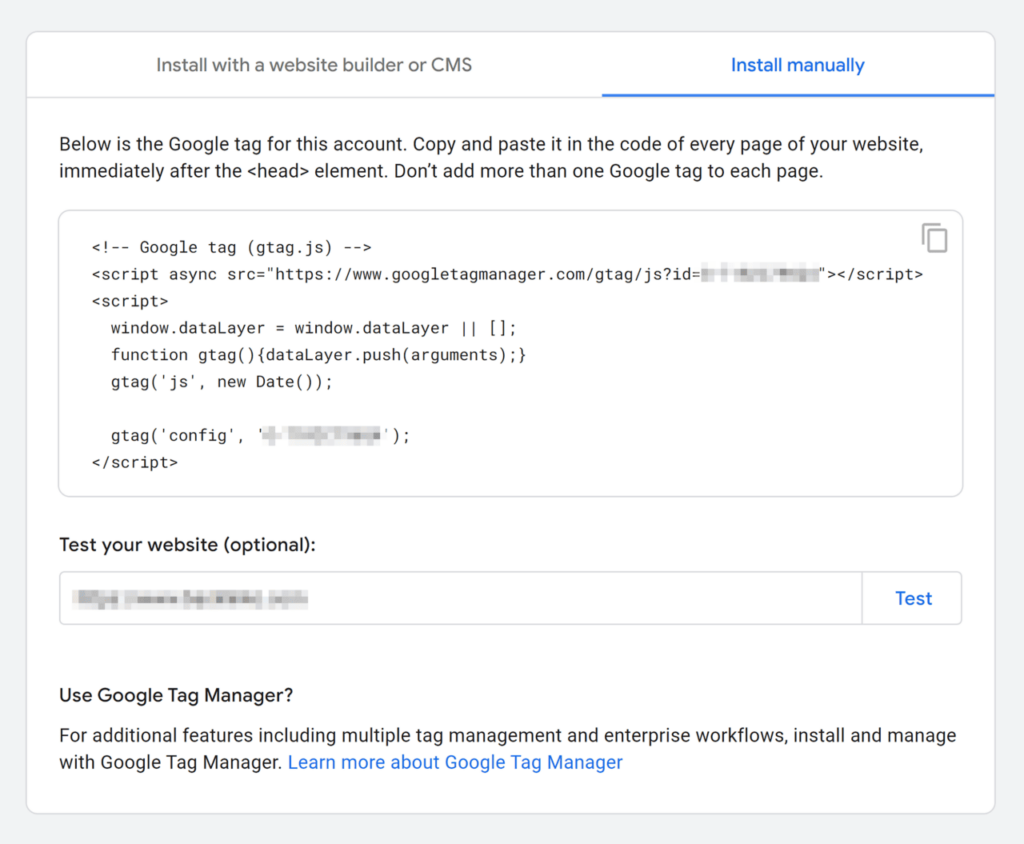
After creating the stream, you will get your tracking code. Click on View tag instructions to see setup options. You can install the code manually, through a CMS, or via Google Tag Manager. For manual setup, copy the code and add it inside the <head> section of your website.
This allows GA4 to start collecting data from your site. Once installed, GA4 will begin tracking user activity. You can check reports to confirm everything works correctly.
How to Check If Google Analytics 4 Is Working
After setup, you need to confirm that GA4 is tracking data correctly. This step ensures your installation works and that data is being collected. Without verification, you may miss important tracking issues.
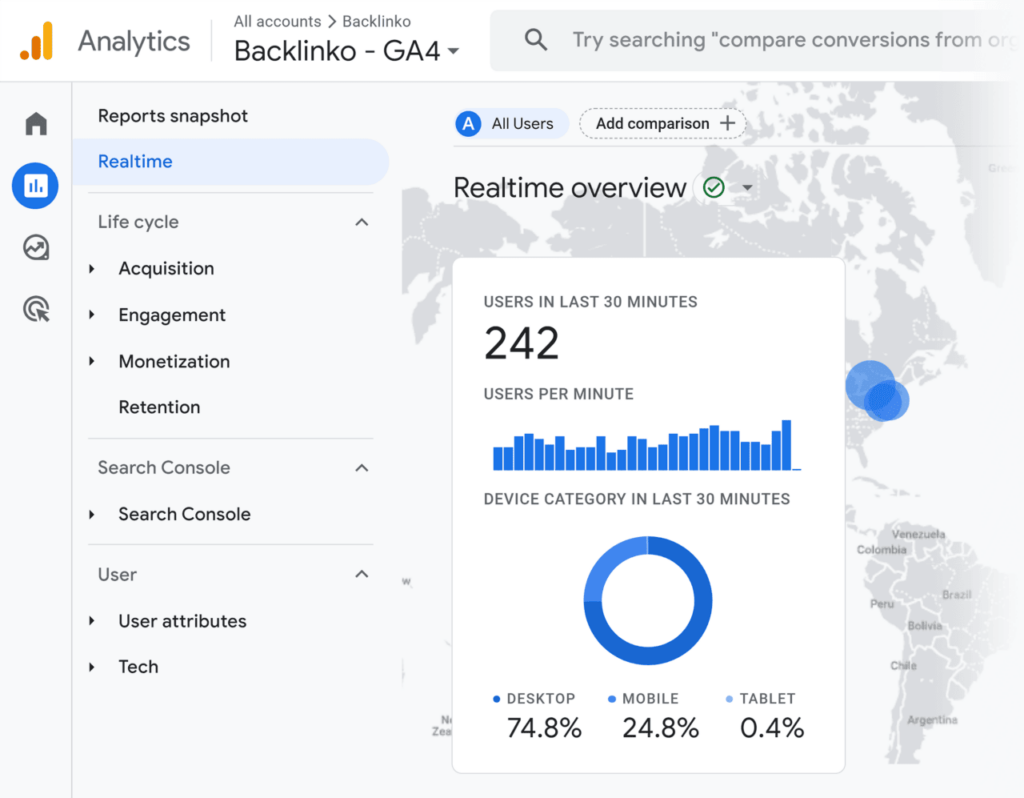
The easiest way to check is through the Realtime report. Go to Reports → Realtime in GA4. Then visit your website in another tab or device. If your activity appears in the report, your tracking is working.
You can also check events like page views and clicks. These should appear in your reports after a few seconds. If no data appears, check your tracking code or set it up again.
Understanding GA4 Dashboard
The dashboard in Google Analytics 4 helps you navigate and analyze your data. It shows key metrics, reports, and user activity in one place. Understanding the layout makes it easier to find insights.
Home
The Home section gives a quick overview of your data. You can see users, traffic trends, and recent activity. It helps you monitor performance at a glance.
Reports
The Reports section contains detailed data about your website. You can explore traffic sources, user behavior, and engagement. This is where most analysis happens.
Explore
The Explore section allows you to create custom reports. You can use segments, filters, and comparisons. This helps you analyze data in more detail.
Advertising
The Advertising section shows attribution and campaign data. It helps you understand how marketing channels perform. You can use it to improve your campaigns.
Key Reports in Google Analytics 4
GA4 provides different reports to help you understand your data. These reports show traffic, user behavior, and performance. Learning these reports helps you analyze your website effectively.
Real-Time Report
The Real-Time report shows what is happening on your site right now. You can see active users, locations, and pages they visit. This helps you check if tracking works correctly.
Traffic Acquisition
This report shows where your users come from. You can see sources like organic search, social, or direct traffic. It helps you understand which channels drive traffic.
Engagement Report
The Engagement report shows how users interact with your site. You can track events, page views, and engagement time. This helps you measure content performance.
Conversions Report
The Conversions report shows important actions completed by users. These include purchases, sign-ups, or form submissions. It helps you measure your business goals.
GA4 vs Universal Analytics (UA)
Google Analytics 4 works differently from Universal Analytics. GA4 uses a new tracking model and provides more flexible data. Understanding this difference helps you use GA4 more effectively.
Universal Analytics focused on sessions and pageviews. GA4 uses an event-based model to track every user interaction. This gives you deeper insights into user behavior.
GA4 also supports cross-device tracking and better privacy controls. It shows how users move across platforms. This makes your data more accurate and useful for analysis.
How GA4 Tracks Data
Google Analytics 4 tracks data using events. Every user action on your site is recorded as an event. This includes page views, clicks, scrolls, and other interactions. This approach gives you more detailed insights than older systems.
GA4 automatically tracks some events without setup. These are called automatic events, such as page_view and session_start. It also tracks enhanced events like scrolls and outbound clicks when enabled.
How to Track Conversions in Google Analytics 4
Conversions in GA4 are based on events. You can mark any important action as a conversion. This helps you track goals like sign-ups, purchases, or form submissions. It allows you to measure real results from your traffic.
To track conversions, go to Admin → Events in GA4. Find the event you want to track and turn on Mark as a conversion. Once enabled, GA4 will count every time that event occurs.
You can also create custom events for specific actions. This gives you more control over what you track. Tracking conversions helps you understand performance and improve your strategy.
You can create custom events based on your needs. This helps you track specific actions like button clicks or form submissions. Using events allows you to measure user behavior more accurately.
How to Use GA4 for SEO
You can use Google Analytics 4 to improve your SEO performance. It helps you understand how users find your site and how they interact with your content. This gives you clear insights to optimize your strategy.
Track Organic Traffic
Go to Traffic Acquisition and filter by organic search. This shows how much traffic comes from search engines. You can track growth and identify trends.
Analyze Landing Pages
Check which pages bring organic traffic. Go to Engagement → Pages and screens and filter landing pages. This helps you find high-performing and weak pages.
Improve User Behavior
Analyze engagement metrics like time on page and events. This shows how users interact with your content. You can improve pages with low engagement to boost performance.
Common Mistakes to Avoid
Many users misuse Google Analytics 4 and end up with unreliable data. These mistakes often happen during setup or while reading reports. Small errors can lead to wrong insights and poor decisions. You need to avoid them for accurate analysis.
Incorrect Tracking Setup
If the tracking code is missing or placed incorrectly, GA4 will not collect data. Always verify installation after setup.
Not Using Conversions Properly
Many users forget to mark important events as conversions. This makes it hard to measure real results.
Ignoring the Event-Based Model
GA4 works on events, not sessions only. Ignoring this leads to a misunderstanding of reports and metrics.
Not Checking Data Regularly
Some users set up GA4 but never review reports. Regular monitoring helps you find issues and improve performance.
Misinterpreting Metrics
Reading metrics without context can lead to wrong conclusions. Always analyze data with a proper understanding.
Conclusion
Google Analytics 4 helps you track and analyze user behavior effectively. It provides insights into traffic, engagement, and conversions. This helps you understand how your website performs. It also allows you to improve your strategy based on real data.
Learn the basics first and then explore advanced features. Check your reports regularly and track key metrics. Focus on improving user experience and performance. This approach helps you get the most value from GA4.